
Viewing Timetables
All timetables in this menu have a set of selection filters, an export to Excel, the ability to create multiple pdf copies of timetables via bulk print and a set of viewing options as shown below.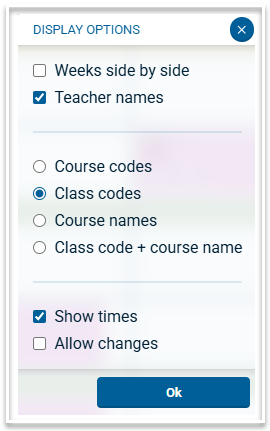
For users with full timetable access (not read-only), selecting 'Allow changes' will enable them to make changes to timetables such as allocating or changing teachers and rooms or moving classes between periods.
Student Timetables
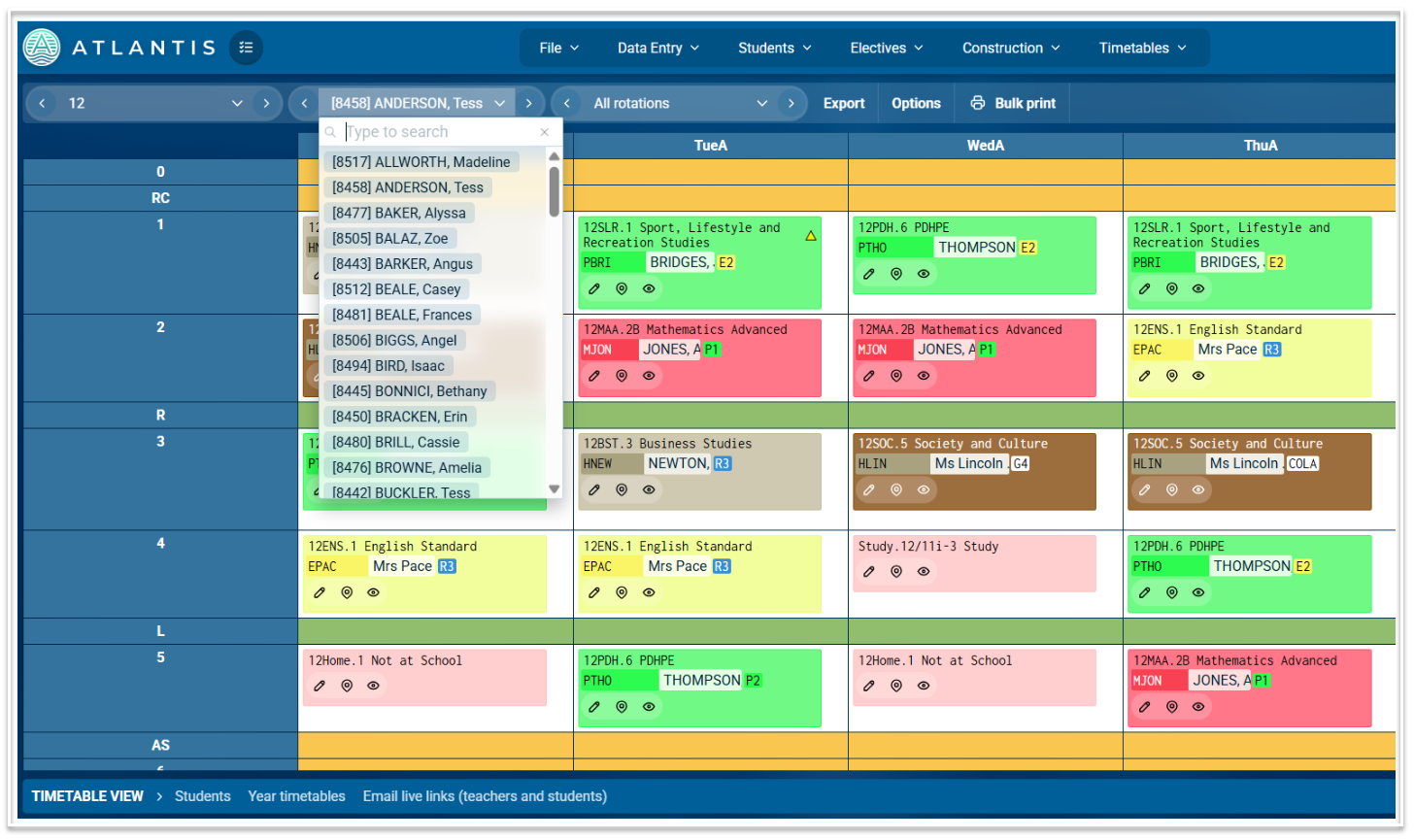
View the timetables of individual students via Timetables > Student Timetables.
Select the year level in the first filter, then a student from the second filter. You can cycle through the list of students using the forward and back arrows. You can also type in the search bar to search for an individual student. Use the rotation filter to display classes for individual rotations or all rotations at once.
Teacher Timetables
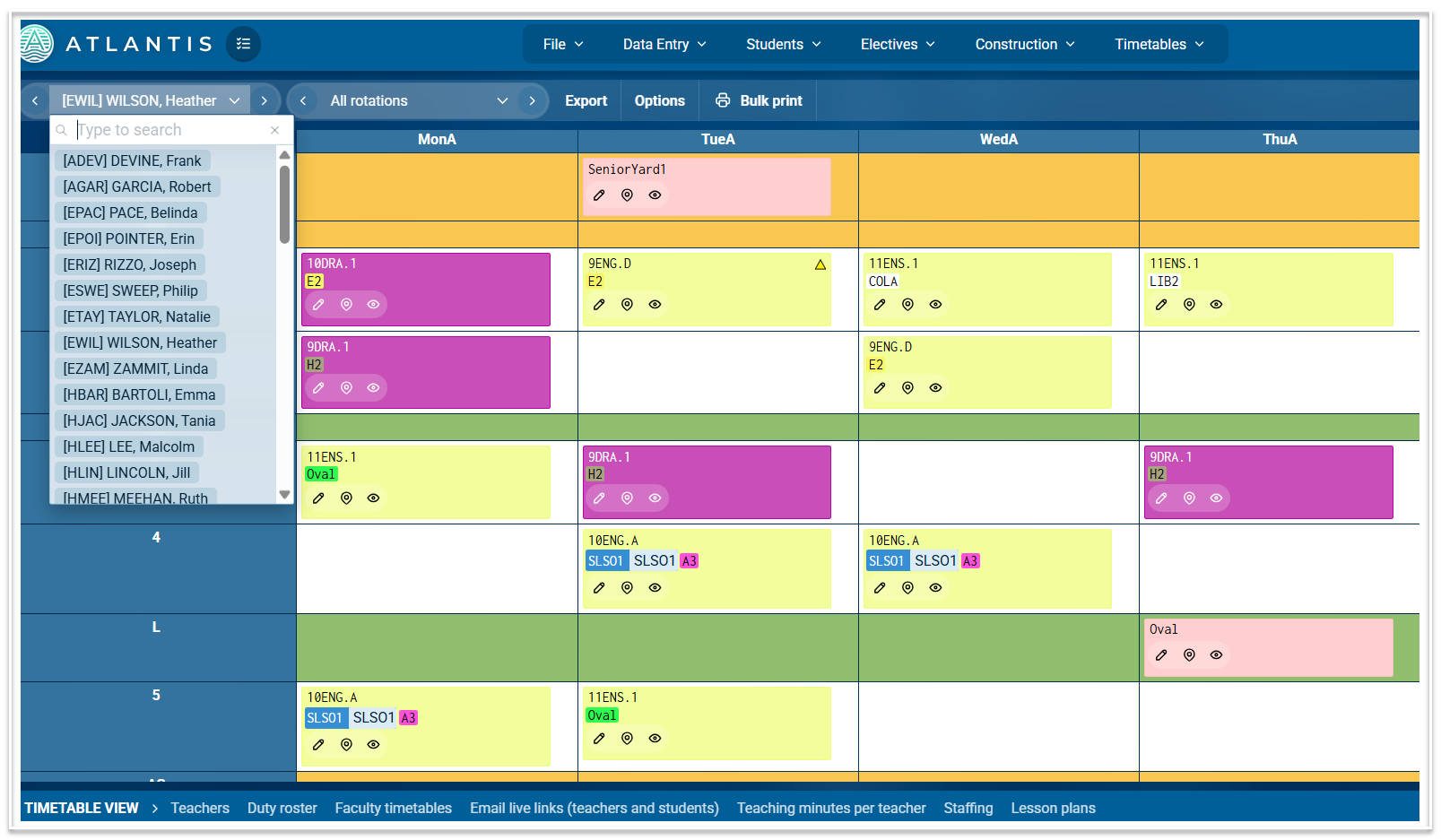
The Teacher Timetables page has two filters - Teacher and Rotations.
Use the first filter to locate a teacher by typing in the search bar. Use the forward and back arrows to scroll through the list of teachers. Use the rotation filter to display classes for individual rotations or all rotations at once.
Room Timetables
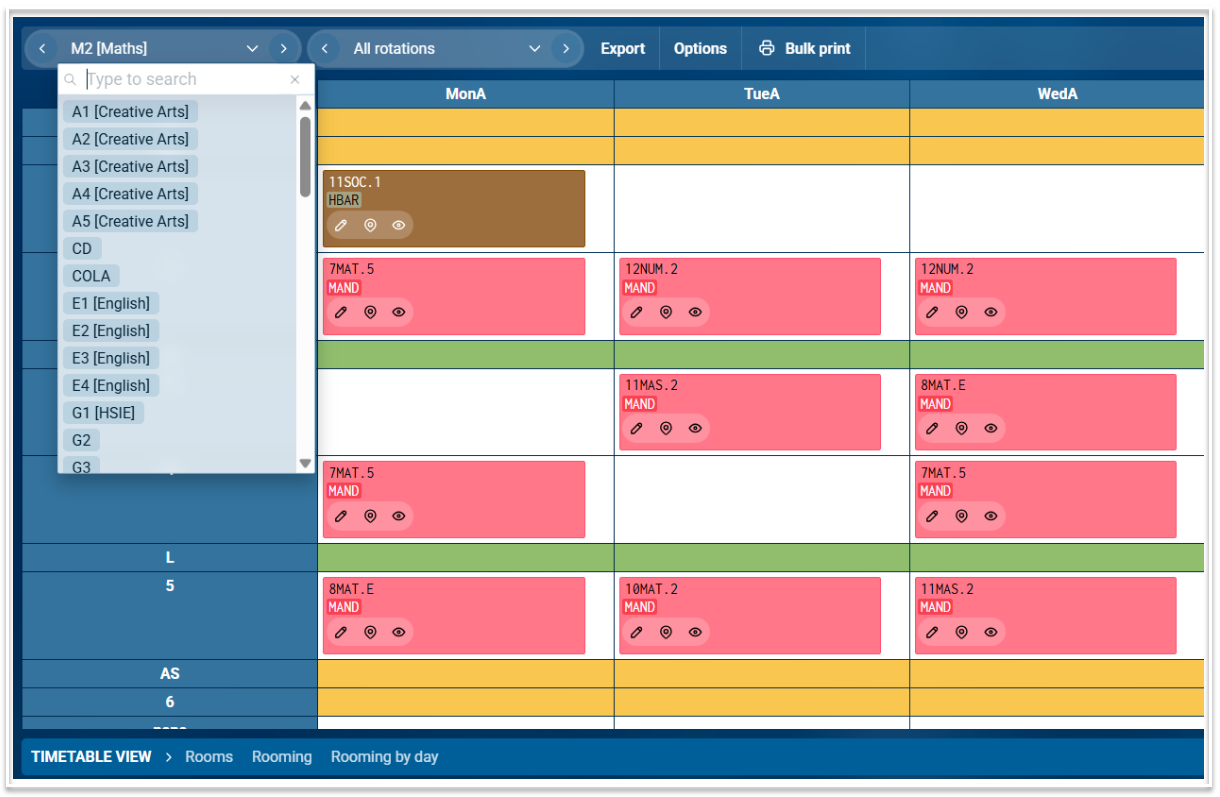
You can view timetables for individual rooms. This is helpful when allocating rooms or arranging room swaps. Select a room from the first filter. Rooms are listed alphabetically by code and display the faculty to which they belong. Search for a room via the search bar or scroll through the rooms using the forward and back arrows.
Teachers in Faculties
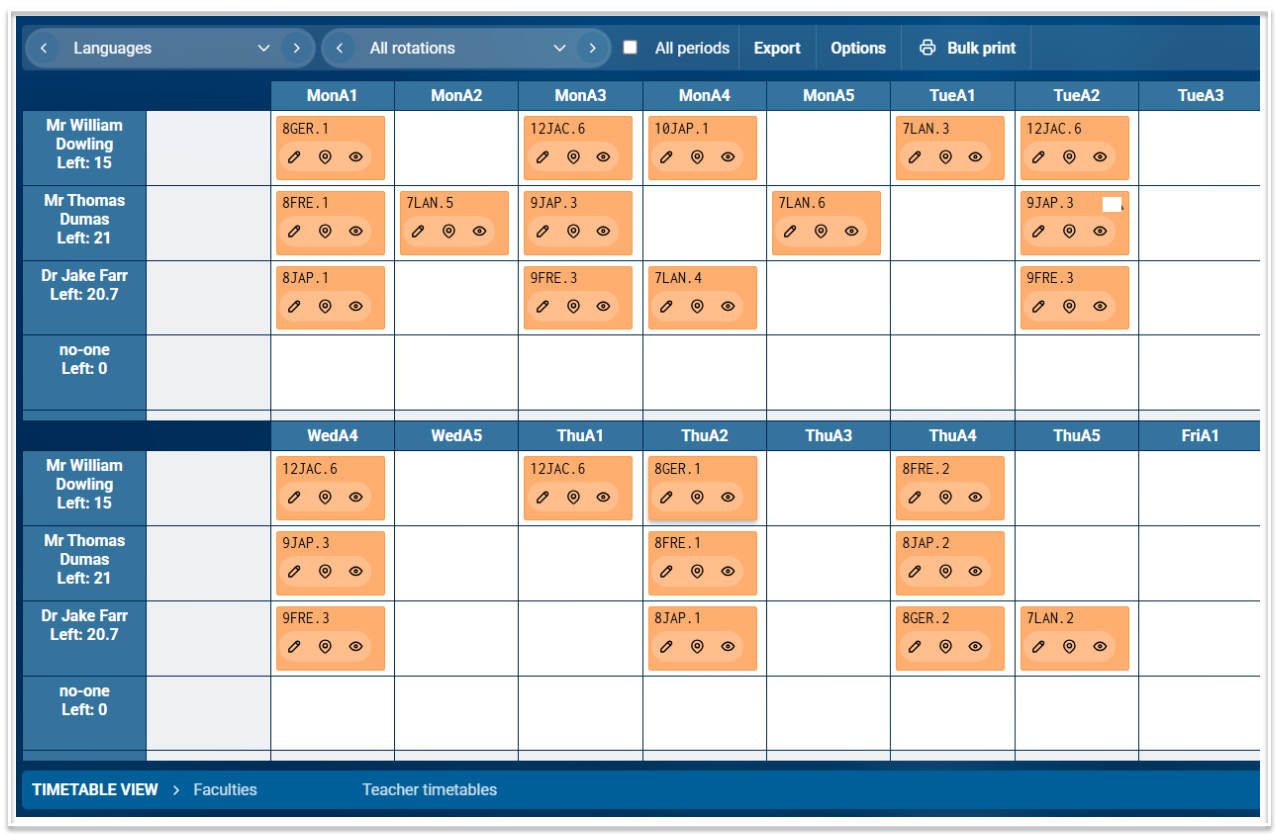
This timetable view is useful for making staffing changes, particularly to resolve clashes or to split classes. Drag and drop classes from one teacher to another within a period to make the staffing change.
Teachers in the selected faculty are listed vertically on the left hand side with periods displayed across the top. The default display shows teaching periods only, with an option to show all periods. Each row displays the classes assigned to the respective teacher in each period.
Rooming by Day
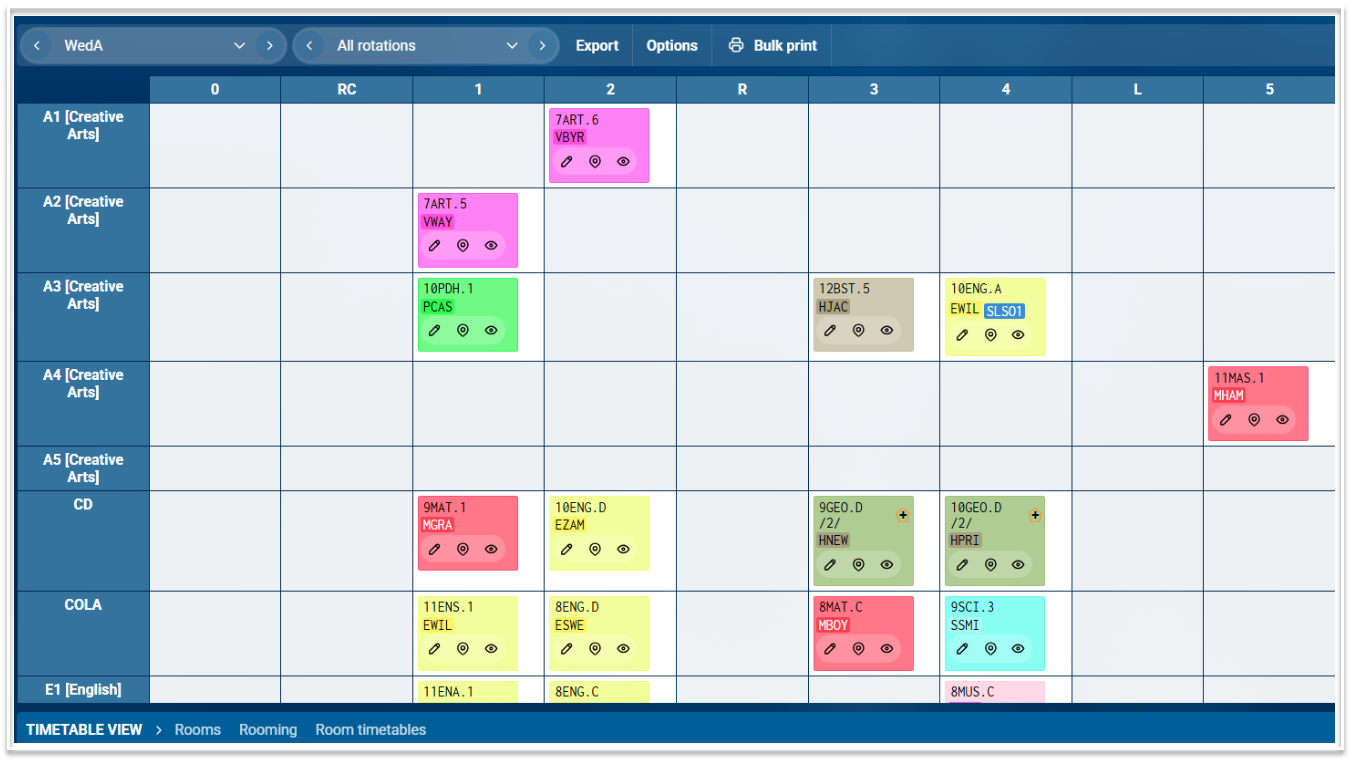
This timetable view is useful for making rooming changes per period per day, particularly to resolve clashes. Drag and drop classes from one room to another within a period to make the rooming change.
Other Timetable Views
These include
- Year timetables
- Year/horizontal Structs (Class timetables e.g. 10A)
- Faculty Timetables (Displays all classes in the selected faculty)
- Whole School (Daily view of the timetable for the whole school)
- Who is free when
- Which room is free when
Overlay Mutliple Timetables
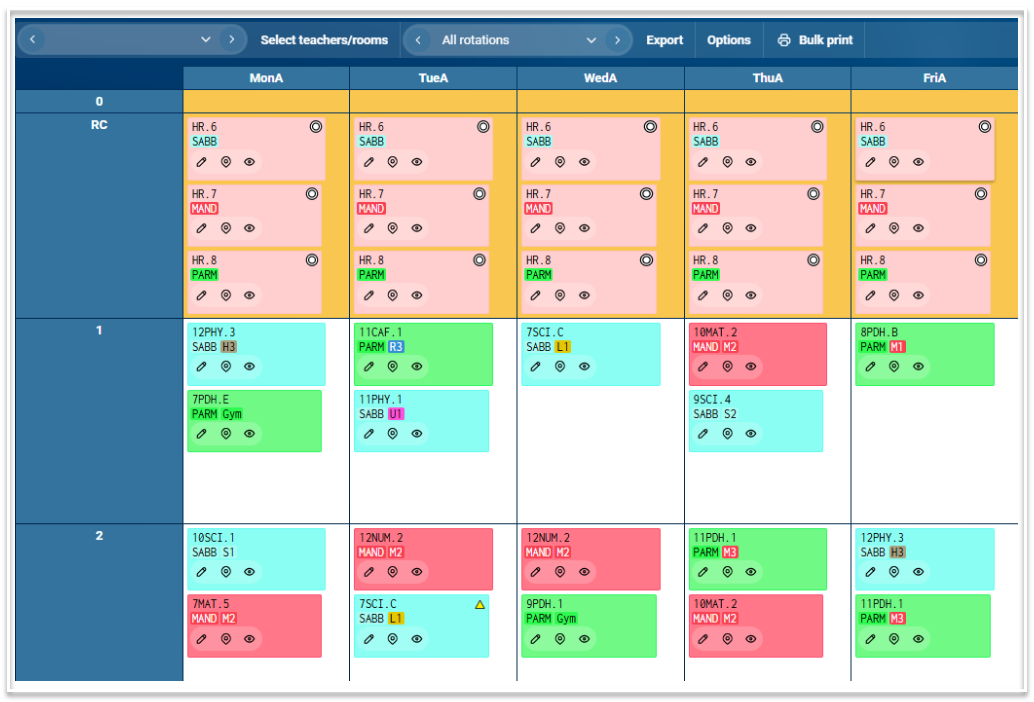
Display a combination of teachers and/or rooms together in one timetable using the Overlay Multiple Timetables feature. Use "Select teachers/rooms", to select which teachers and/or rooms you wish to combine, then click "ok".
Bulk Print Timetables
The Bulk print option is useful for generating pdf copies of multiple timetables, for example, all students in a year level or teachers in a faculty.
When 'Bulk print' is selected, a set of filters and options is displayed. Use these to select which timetables to print and how you would like them displayed. Each timetable screen has different filters. These are the filters and options for bulk printing student timetables.
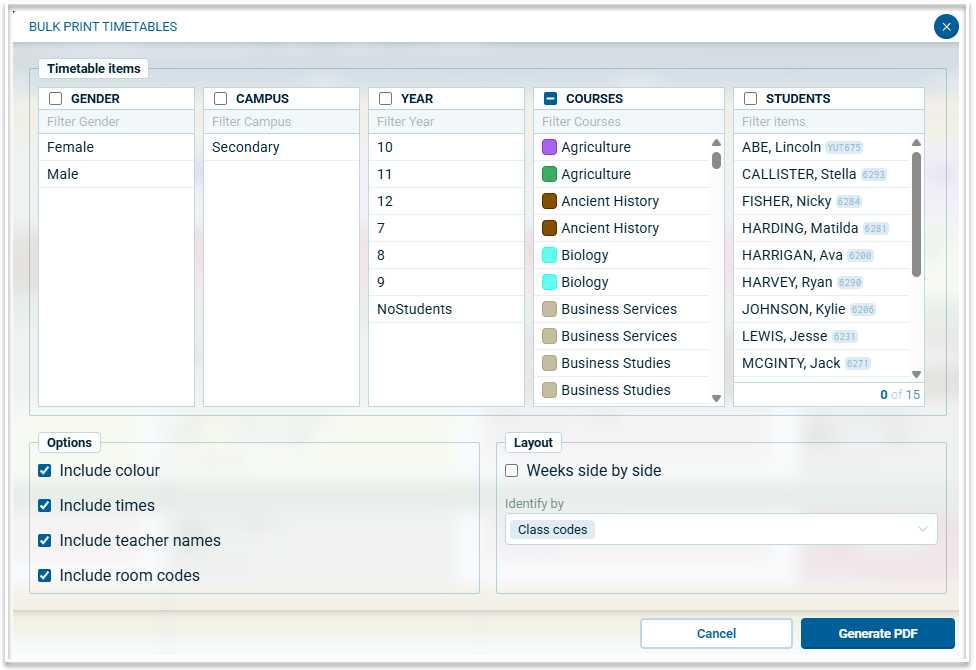
When you have selected the required students, teachers, rooms or year levels, click 'Generate PDF'. Atlantis will create a pdf file containing the selected timetables, which can then be printed.