
Integration with School Bytes Sports Enrolments
It is possible to manage your sports enrolments in School Bytes and import this into Atlantis.
In Atlantis, set up an integration with School Bytes by following these steps:
- Go to File > Integrations.
- Select the new integration field.
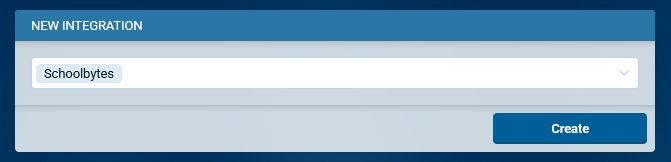
- Select School Bytes from the dropdown.
- Select Create. A School Bytes dialog box displays.
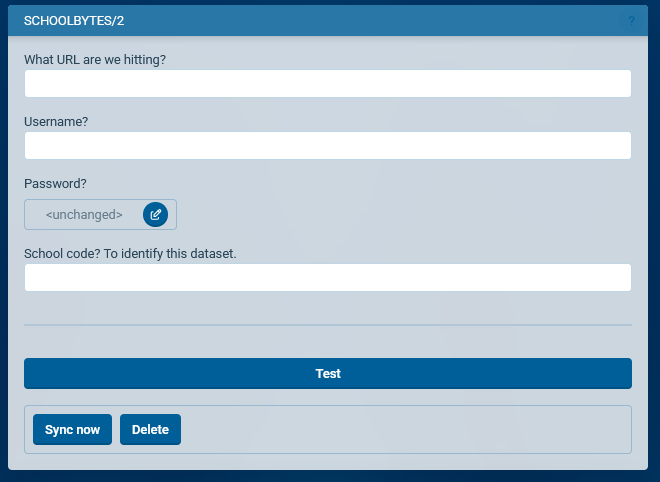
- Enter the URL for your School Bytes connection. It might look something like this:
https://sync.schoolbytes.education/sync - Enter the School Bytes username, password, and your School Bytes school code.
- Select Test to test the connection.
If you get a positive response, the integration is now complete.
Check the class codes
It is important that class codes for sports include "...SPO...", e.g. "8SPO11", otherwise they won't be recognized.
If you have non sport classes with this code, contact Atlantis to find another solution. Similarly, if your sports classes do not have this code, updates your sports codes or contact Atlantis for assistance.
How to sync data between School Bytes and Atlantis
Sync data between School Bytes and Atlantis by initiating a push and/or pull request in Atlantis. We recommend you perform this task whenever there is a change.
- Go to File > Integrations.
- Select School Bytes. The School Bytes dialog displays.
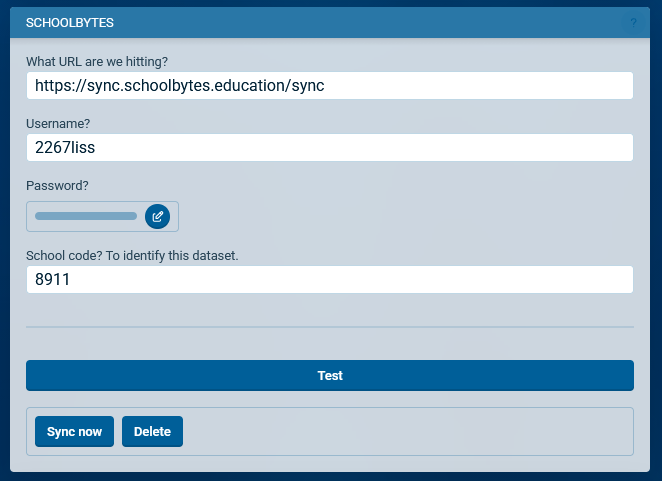
- Select Sync now. A new dialog displays.
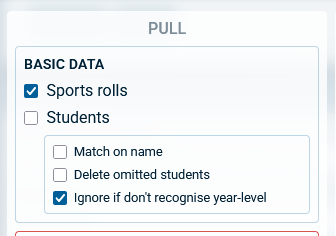
- To receive sports rolls from School Bytes, find the Pull section. Make sure to tick "Sports Rolls".
- Select Send/Receive to complete the sync
IMPORTANT: The section DANGER ZONE can be useful when doing the initial data migration into an empty data set. Otherwise you should only use it if advised by Atlantis.