Setting up Elective Streams
Elective streams allow different subject selection criteria to be used for different groups of students within a year level.
To set up electives streams for an elective dataset
- Go to Electives > Datasets. If you do not have a dataset, create one here. Information on how to create a dataset can be found in this article.
- In the Streams column for the selected dataset, enter the names of the streams required as a comma-separated list. Some examples are ATAR, Non-ATAR; VCE,VCEVM,VPC; HSC,IB. These will be added automatically to the Streams field in the Setup screen for that dataset.
- In the Offered courses table, restrict specific subjects to specific streams by entering the stream in the Offer to (streams) column. Leaving this column blank will mean that the subject is available to all streams.
- In the Selection Rules table, enter rules specific to each stream and specify which stream the rule refers to in the Streams column.
- Go to Electives > Subject selection...> Setup student forms. On the Forms section in the Form design tab you will see each stream as a separate entity, allowing a separate form to be set up for each stream. See this article for information on how to set up a form.
- In Electives > Subject selection > Student requests, there is an optional column called 'Eligible streams'. This can be used to restrict selected students to one or more streams. For example, if a student is to be restricted to the Non-ATAR stream only, enter Non-ATAR in the Eligible streams column for that student. When that students logs in to do their subject selection, they will be presented with the form of the selected stream and will not have an option to change streams.
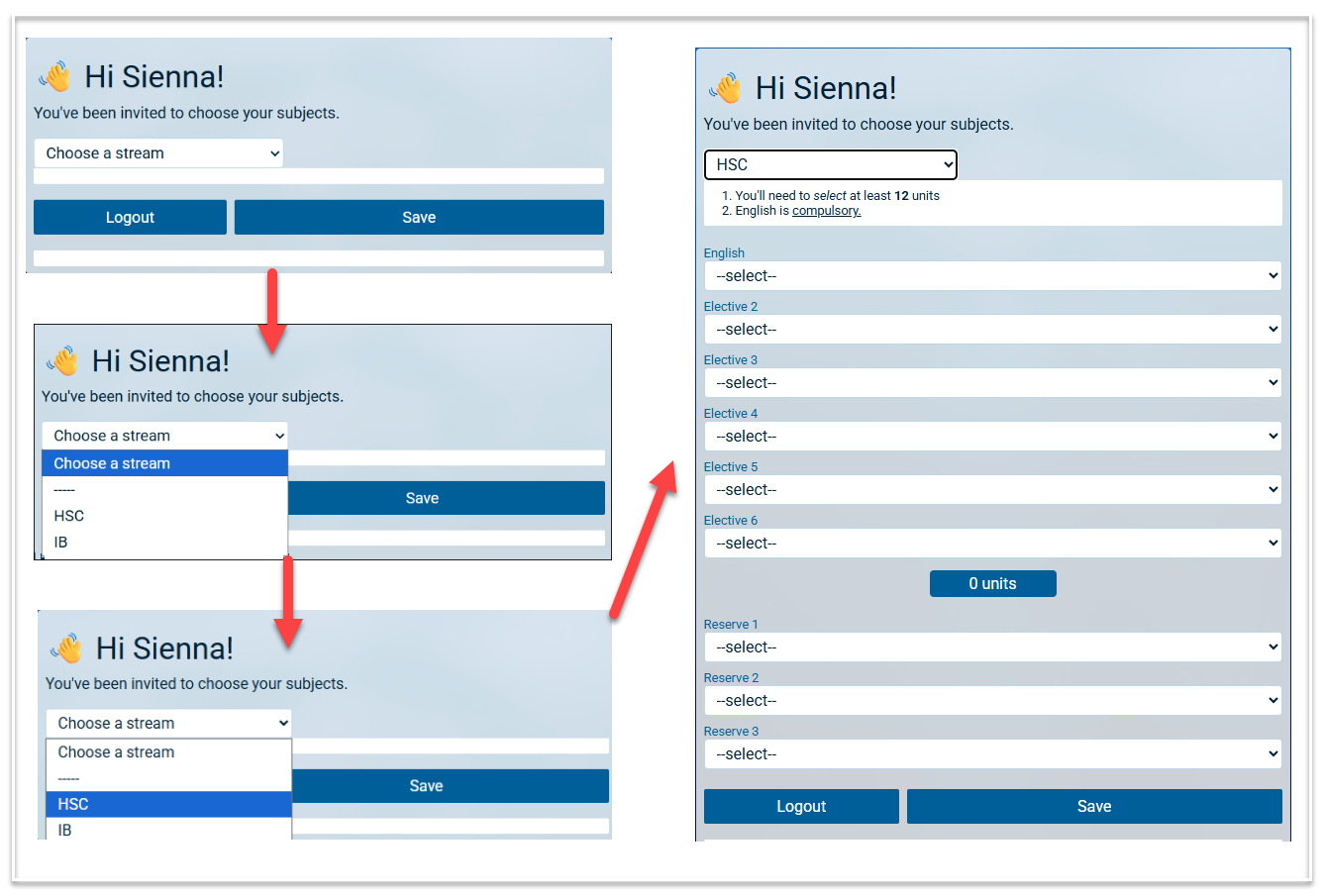
- When a student who is eligible for all streams logs in to do their subject selection, they will firstly be presented with an option to choose a stream. When they select a stream, the form for that stream will open. They will also have the option to change streams.
- Using the 'Live consultation' function will present the same options as when a student logs in.
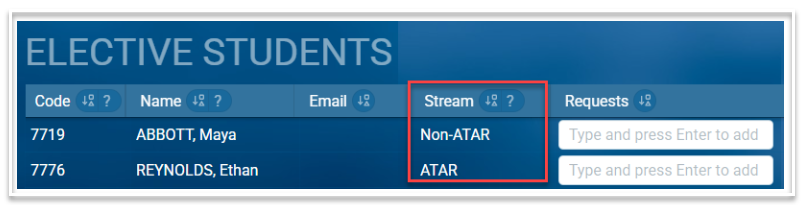
- When choices are pulled into the Student requests table, the stream they have selected, or were assigned to, will be displayed in the Stream column.