
Sentral - Atlantis Integration
Overview
The Atlantis - Sentral integration enables schools to synchronise timetable, class, and student data between systems.
Key capabilities
- Import student enrolments from Sentral into Atlantis
- Publish timetable and class structure from Atlantis to Sentral
- Send daily timetable changes (via Atlantis Covers)
How data flows
- Pull from Sentral to Atlantis: students, enrolments
- Push from Atlantis to Sentral: timetable, classes, daily changes
Systems Involved/Prerequisites
- Atlantis Timetable
- Atlantis Covers
- Sentral
How to set up the Atlantis - Sentral integration in Sentral
Overview
Configure the Atlantis-Sentral integration by enabling LISS settings and creating a service account for synchronisation.
Prerequisites
- Permission to access Setup and manage service accounts
- JSON Payloads enabled. Follow these steps:
1. Go to Setup > Integrations
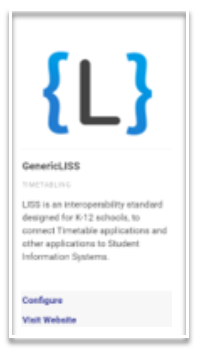
2. Locate GenericLISS
3. Select Configure. The LISS Settings screen displays
4. Set Accept JSON Payloads to Yes.
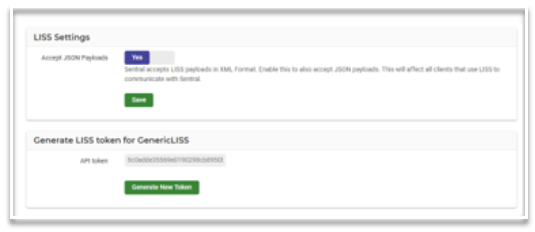
5. Select Save.
Steps to set up Service Account
If you do not have a service account configured for timetable integration, follow these steps:
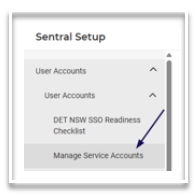
- Go to Setup > User Accounts.
- Select Manage Service Accounts.
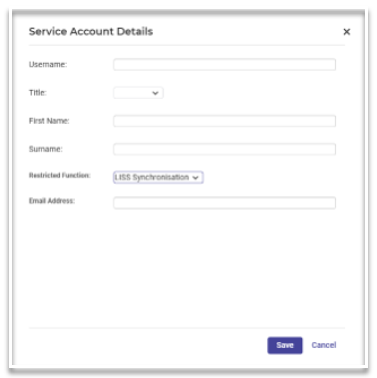
- Select New Service Account. The Service Account Details screen displays.
- Enter a username. You will use this username to set up the integration in Atlantis.
- Enter other relevant details.
- Set Restricted Function to LISS Synchronisation in the dropdown menu.
- Select Save. The Manage Service Accounts screen displays. A green banner at the top displays the generated password for the new service account.
- Record the generated password.
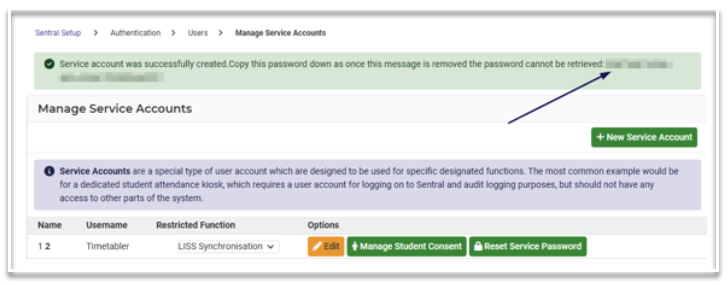
IMPORTANT: Ensure the password is stored safely because it cannot be retrieved later.
You can now set up the integration in Atlantis.
How to set up the Atlantis - Sentral integration in Atlantis
Overview
Create a Sentral integration in Atlantis to connect your system and synchronise data
Prerequisites
- Sentral service account username and password
Steps to follow in Atlantis
To set up an integration in Atlantis with Sentral:
- Go to File > Integrations.
- Select Add integration.
- Select Sentral from the list of systems displayed
- Select Add. Sentral displays in the list of integrations
- Select Sentral. The Sentral configuration screen displays in the Configure & Run tab
- Enter the Sentral URL
- Enter the Sentral username.
- Enter the Sentral password.
- Enter your Sentral school code.
- Make sure Use XML-RPC is not checked.
- If you are using Covers and want that information to be sent automatically to Sentral when publishing, check the box for Auto-publish covers data.
- Select Test to test the connection
- Select Save.
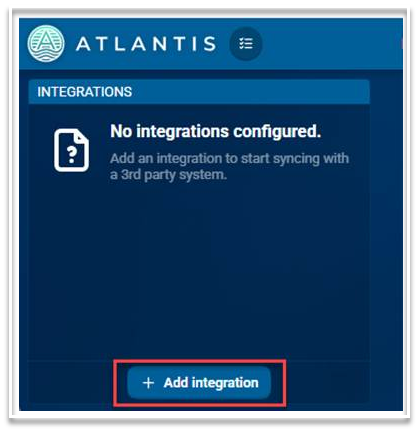
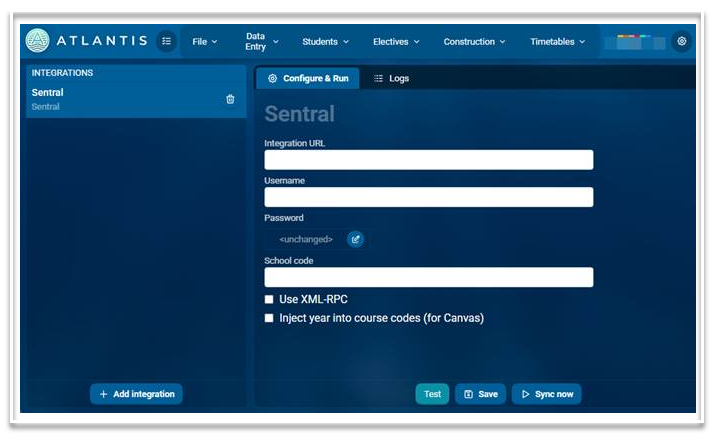
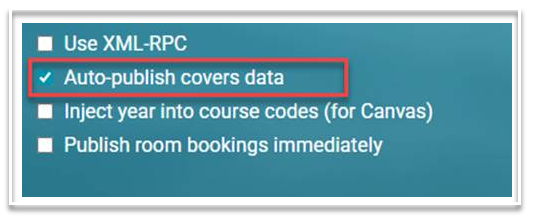
The integration is now complete.
IMPORTANT: After setup, perform an initial pull of students and enrolments.
How to sync data from Atlantis to Sentral
Overview
- Integration with Sentral configured
Steps
- Go to File > Integrations.
- Select Sentral. The Sentral dialog displays in the Configure & Run tab.
- Select Sync now. A new dialog displays.
- To receive data from Sentral. find the Pull section.
- Select the data you want to receive from Sentral.
- To send data to Sentral, find the Push section.
- Select the data you want to send to Sentral. Typically, this is
a) Classes
b) Classlists
c) Timetable
- Select the required date range
- Select Send/Receive.
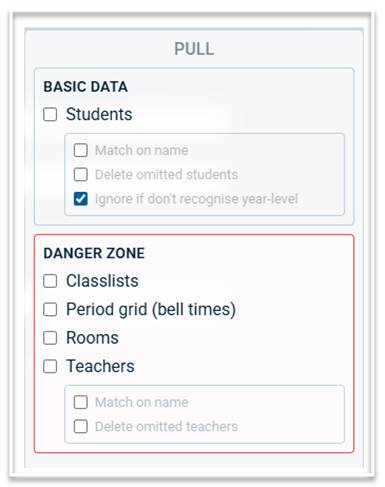
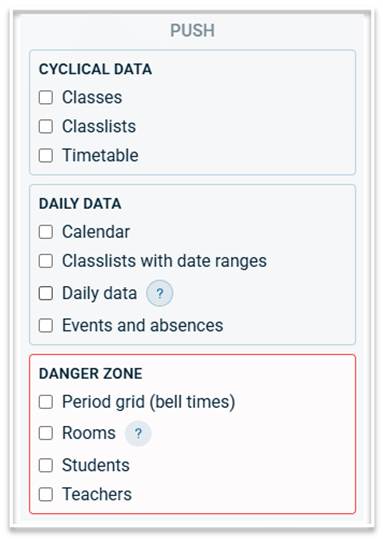
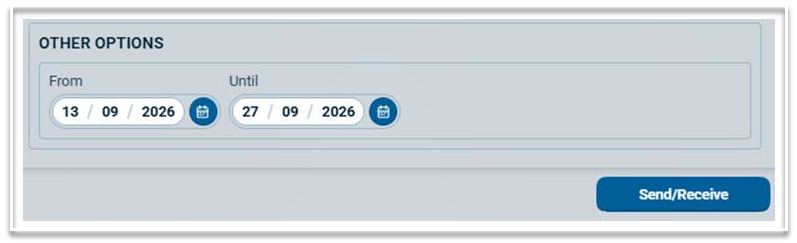
The data you selected will be synced with Sentral. You can find it in the Timetables module.
IMPORTANT: The sections DANGER ZONE can be useful when doing the initial data migration into an empty data set. Otherwise you should only use it if advised by Atlantis.
How to sync data manually from Sentral Timetables to the rest of Sentral
Prerequisites
- Access to Sentral Setup
Steps
- Go to Timetables. Review the Last Synchronised time.
- Select Setup > Data Synchronisation. The Sentral Data Sources screen displays.
- Review the time of Last Synchronisation, on the left.
- Select Synchronise Now if there has been an update from Atlantis since the last synchronisation.
- Check the confirmation checkbox to confirm that you want to do a manual synchronisation.
- Select Confirm.
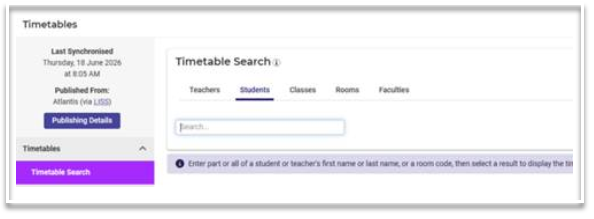
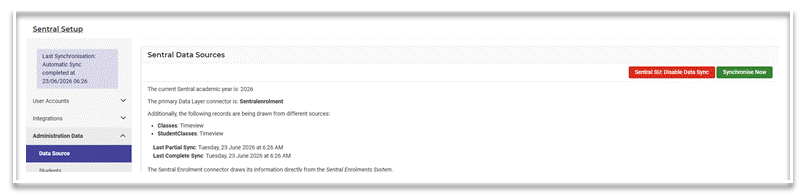
Once the manual synchronisation is completed, the time of Last Synchronisation is updated, and data from the Timetables module is available in the rest of Sentral.
How to publish daily covers to Sentral
Overview
Publish daily covers changes from Atlantis Covers so updates are visible to teachers and sent to Sentral.
NOTE: The Covers product is dependent on the Timetable product for data. The Covers product gets data about the cyclical timetable from the “official Timetable version” i.e. the one whose name equals the academic year e.g. “2027” for a Southern Hemisphere school or “2027-28” if you’re a northern hemisphere school.
The Covers product needs to be kept up-to-date with changes to the Timetable product. This happens automatically within 10 minutes of a change being made in the Timetable product, but you can also invoke it immediately in the Covers product via “File > More > Pull data from timetable”.
Prerequisites
- Access to Atlantis Covers
- Integration with Sentral configured
- (Optional) Auto-publish covers data to Sentral enabled
- Atlantis Covers is in sync with Atlantis Timetable: In Covers, select File > Pull data from timetable, if an immediate update is required.
Steps
Either
- Go to File > Integrations within Covers or Timetable. Both options lead to the same screen.
- Select Sentral then select Sync now.
- On a regular basis you can now
- Pull students from Sentral to get new enrolments/disenrolments
- Push the Timetable to Sentral any time the cyclical timetable has changed
- Push classlists to Sentral with date ranges
- Push daily data to Sentral
Or
- Go to the main screen of Covers.
- Select the Publish changes button. The button will be red if there are pending changes. This makes the changes visible to teachers in Atlantis. If you have enabled Auto-publish covers data in the Sentral Integration, it will also push the changes to Sentral.

Trouble Shooting in Atlantis
Overview
Resolve missing or incorrect data in Sentral by verifying timetable sync, publishing updates, and reviewing integration logs within Sentral.
Symptoms
- Sentral does not display expected timetable data
- Students appear in incorrect lessons
- Teachers appear in incorrect lessons
- Recent timetable updates do not appear in Sentral
Causes
- Atlantis Covers and Atlantis timetable might be out of sync.
- Data from Atlantis has not been pushed to Sentral.
- Other
Resolution
- In Atlantis Covers, select File > More > Pull data from timetable. (This synchronises the two Atlantis products with each other. It should be unnecessary to ever do this, because it happens automatically every 10 minutes, but if there’s any doubt, use it.)
- Manually sync in Sentral and see if that resolves the issue.
- If not, go to File > Integrations within Covers or Timetable
- Select Sentral, then select Sync now.
- Push the data you need to Sentral.
- Manually sync in Sentral and see if that resolves the issue. If not, you can be your own detective and look at exactly what Atlantis is sending Sentral.
- Go to File > Integrations
- Select the Logs tab
- Download the latest transcript
- Examine the text file which was downloaded to your Downloads folder
7. Notify the Atlantis team at: help@atlantis.education.
- Provide date
- Provide period
- Provide class code
- Provide any students or teachers that are not displaying correctly
- Provide expected result in Sentral
They will help you resolve the issue.
Troubleshooting in Sentral
Overview
Resolve missing or incorrect data in Sentral or Atlantis.
Symptoms
- Priority in clash
- JSON
- Two files into one Sentral
- Sync from timetable to PxP
- multi-file/campus support
Causes
- JSON Payloads not enabled
- Data from the Sentral timetables module has not been synchronised to the rest of Sentral
- Other
Resolution
- Go to Setup > Integrations.
- Locate GenericLISS.
- Select Configure. The LISS Settings screen displays.
- Set Accept JSON Payloads to Yes.
- Manually sync in Atlantis and see if that resolves the issue.
- Manually sync data in Setup > Data Synchronisation.
- Lodge a Support Case through the Sentral Help Centre in Sentral.
FAQs
Do “Events” in Atlantis Covers go into Sentral PxP for roll marking?
Currently, no. (There has been some discussion about sending Atlantis events into the Sentral “Activities” module using the “liss.publishEventsAndAbsences()” call, and if done then this would enable roll marking, but this is not implemented.)