Using the Staffing Preferences Portal
This article explains how to use the Staffing Preferences portal to enter faculty staffing preferences.
Staffing Preferences
Accessing the Staffing Preferences Portal
When you have been assigned a Head of Faculty role, and the access schedule has been configured, the Staffing Preferences card will be displayed after logging in to Atlantis.
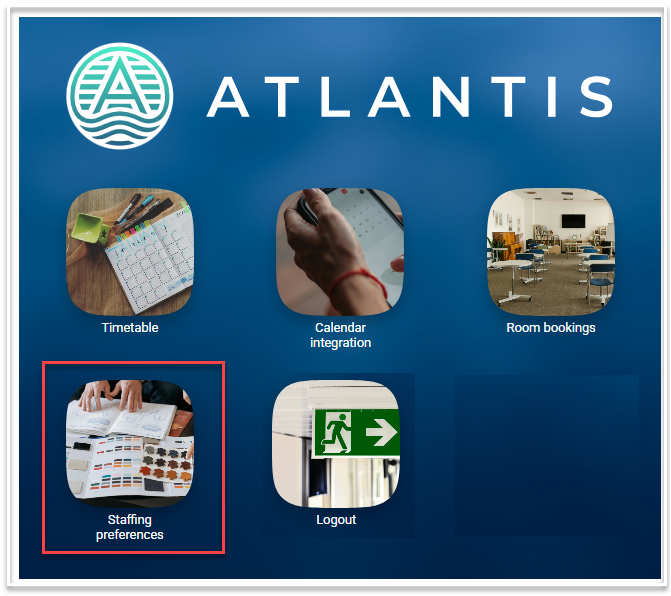
Selecting this card will open the following screen for your faculty:
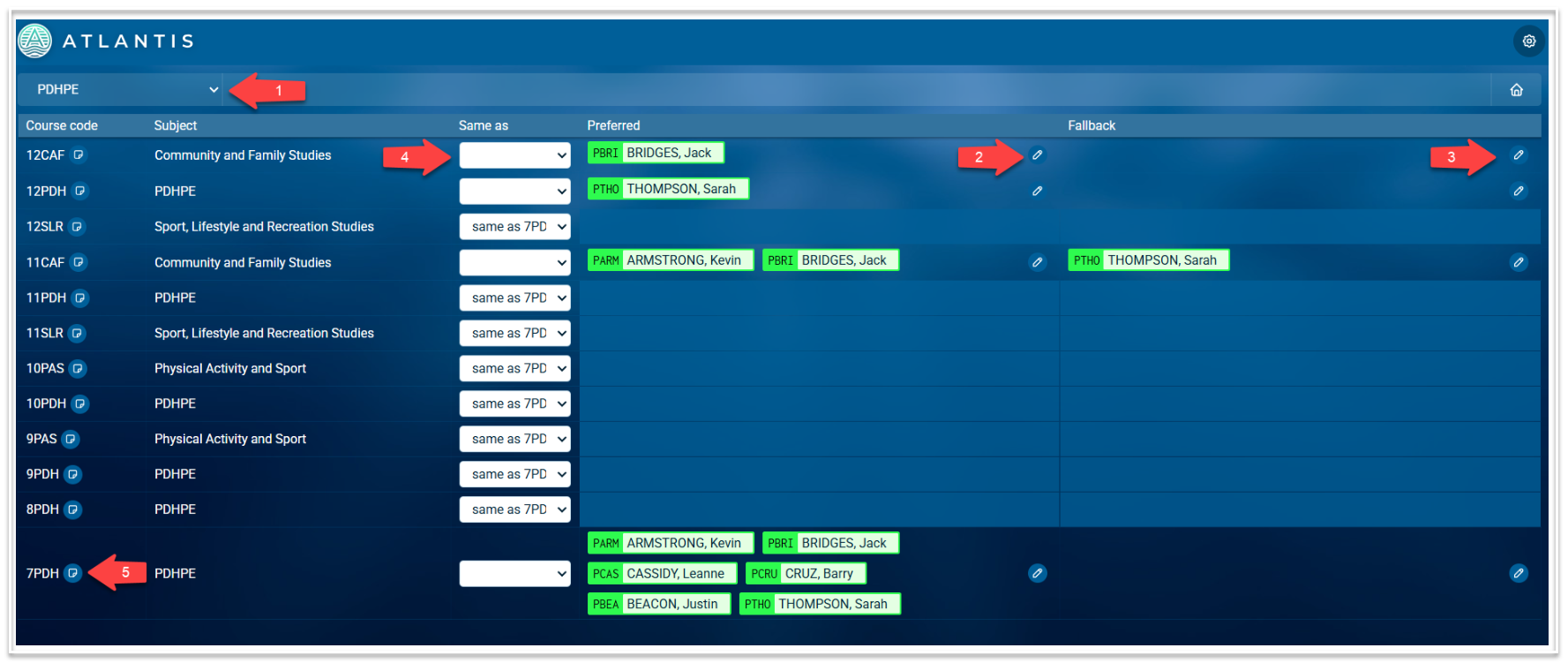
Using the Staffing Preferences Portal
- The faculty drop down list will display each faculty for which you are responsible. Select the faculty you wish to update.
- To select teachers as preferred options for a course, select the pencil icon in the Preferred column for a course to display the Teacher picker. Click on one or more teachers to add as preferred options.
- To select teachers as fallback options for a course, select the pencil icon in the Fallback column for a course to display the Teacher picker. Click on one or more teachers to add as fallback options.
- Instead of selecting teacher options manually for a course, you can use the drop down list in the 'Same as' column to select a course which has the same required teacher options. In the above example, 8PDH has the same teacher options as 7PDH, so 'same as 7PDH' has been selected.
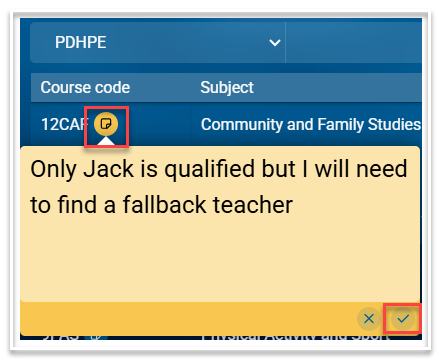
- If you wish to leave a note regarding a particular course, select the note icon next to the course code. Enter your text and click the tick to save. Once a note is added, the icon will turn yellow. The Timetabler will have visibility of this note in the HoD Staffing requests page in the Timetable module.