
Creating Repeating Absences and Events
Use this method to create an absence or an event that repeats at regular intervals over a date range.
Creating a repeating absence
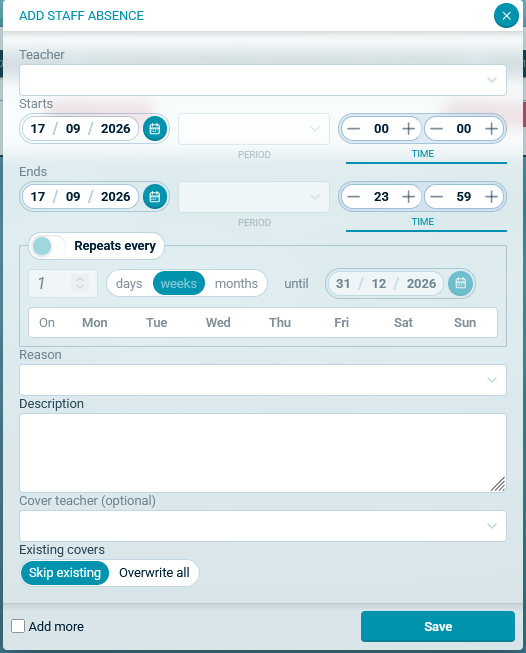
- To create a repeating absence, go to the Covers main screen and select 'Add Absence'. This will open the following dialog:
- Select the absent teacher.
- Select the start date. If it is a partial day absence, select the period or the time that it starts and ends. Do not set the end date here. This is done in the next step.
- There is a section beneath the date and time section labelled 'Repeats every'. This is turned off by default. Turn it on using the toggle.
- Select how often the absence recurs. It can be any number of days, weeks or months. For example, to repeat fortnightly, select 2 weeks.
- Select the end date in this section. This will automatically update the end date in the section above, which will be read only.
- If using the 'Week' option, select the days of the week on which the absence occurs. There is no need to select a day if the absence is for one day in the week only as this will be the day on which the start date falls.
- Add the reason.
- Add a description if required.
- Add a cover teacher if required.
- Select to skip existing covers or overwrite all.
- Select OK. The absence will be added automatically to all days in the recurrence pattern.
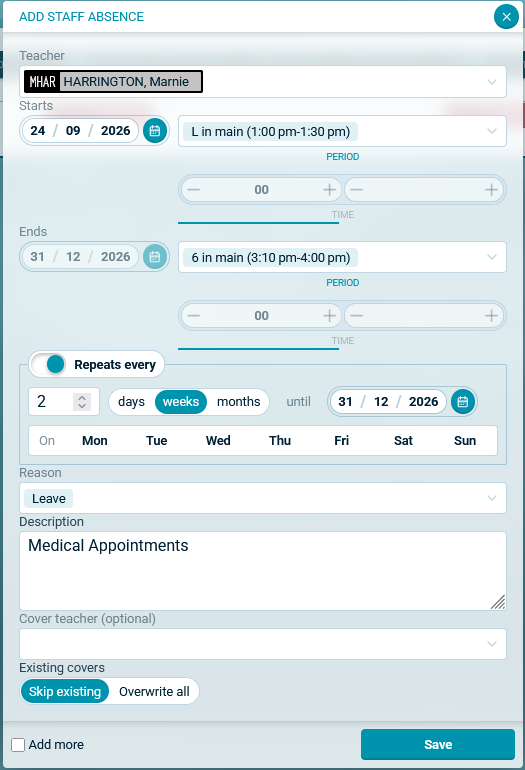
Here is an example of a partial day absence that will repeat every 2 weeks until the end date.
Creating a repeating event
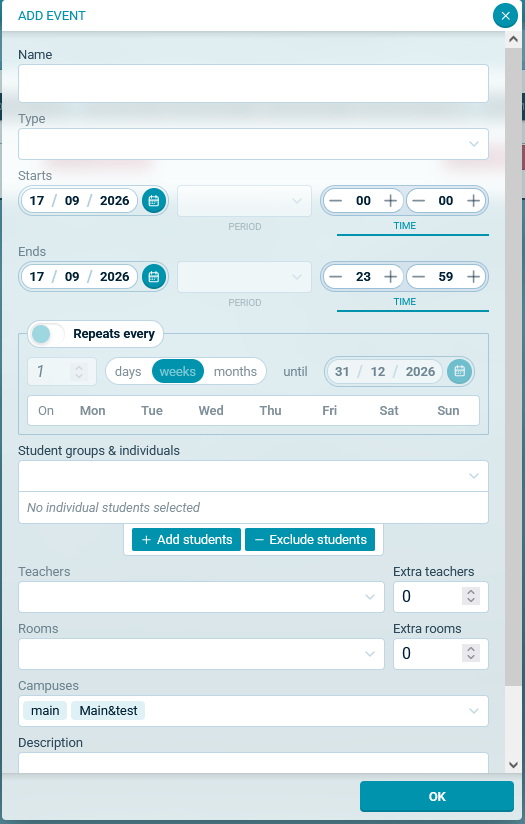
- To create a repeating event, go to the Covers main screen and select 'Add Event'. This will open the following dialog:
- Enter the name of the event.
- Select the type of event.
- Select the start date. If it is a partial day event, select the period or the time that it starts and ends. Do not set the end date here. This is done in the next step.
- There is a section beneath the date and time section labelled 'Repeats every'. This is turned off by default. Turn it on using the toggle.
- Select how often the event recurs. It can be any number of days, weeks or months. For example, to repeat fortnightly, select 2 weeks.
- Select the end date in this section. This will automatically update the end date in the section above, which will be read only.
- If using the 'Week' option, select the days of the week on which the event occurs. There is no need to select a day if the event is for one day in the week only as this will be the day on which the start date falls.
- Add the additional required information for student groups, teachers and rooms and select the campus or campuses that will be involved in the event.
- Select OK. The event will be added automatically to all days in the recurrence pattern.
Deleting a repeating absence or event
To delete one or more occurrences of a repeating absence or event, select the trash icon on the first occurrence that you wish to delete. The following options will appear: 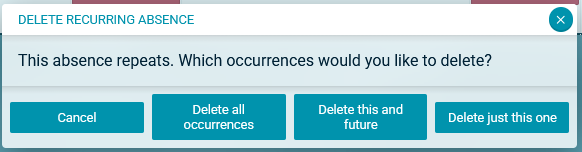
To increase or decrease the number of occurrences of an absence or event, edit any occurrence of the absence or event and adjust the end date as required.