Lesson Plans
Adding a Lesson Plan when creating an absence
A new section titled Lesson Plans has been added to the Add Staff Absence modal, where the absent teachers classes are displayed for each day of the absence.
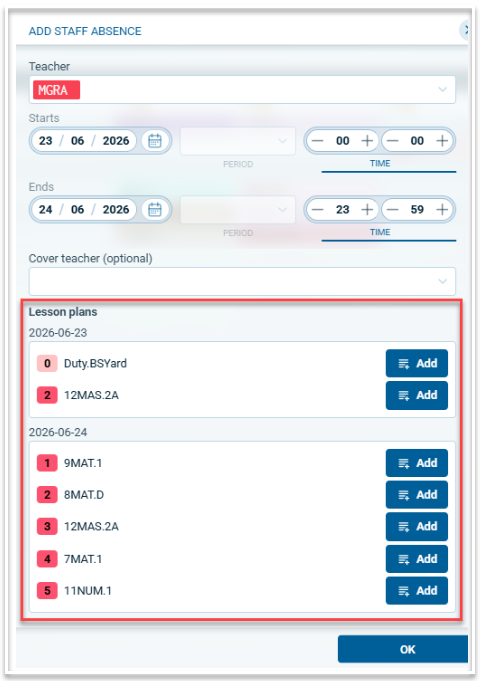
To add a lesson plan, select the 'Add' button for the required class. This will open the Lesson Plan modal as shown below.
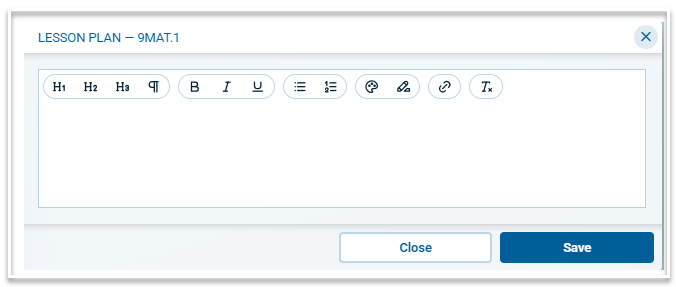
Add the required information. Formatting options include headers, bulleted and numbered lists, text and highlight colours and links. Select 'Save' to complete the lesson plan.
Adding Lesson Plans via Work > Lesson Plans
Once absences have been created, the ability to add lesson plans for all absent teachers becomes available via Work > Lesson Plans. This will open the following screen.
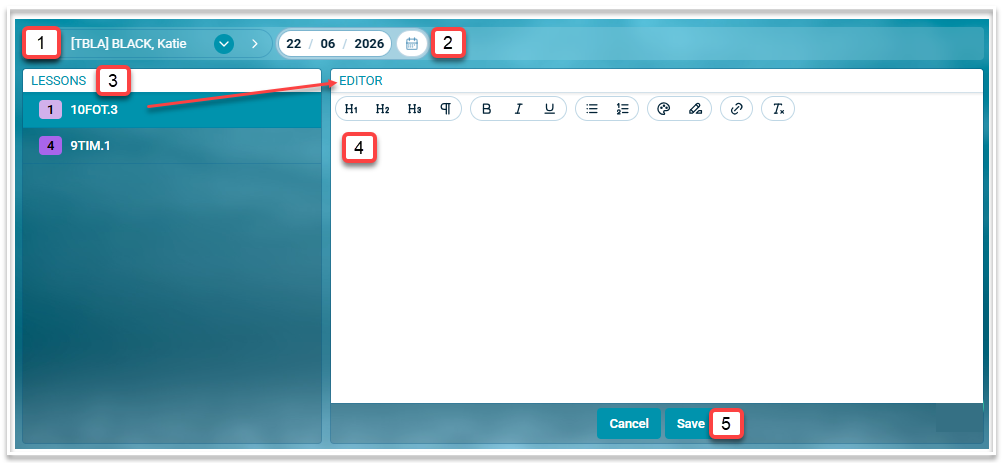
- Select an absent teacher from the teacher dropdown.
- Select the required date.
- The selected teacher's lessons for that date will be displayed. Select a lesson to open the editor.
- Add the required lesson information.
- Click 'Save'
Accessing Lesson Plans
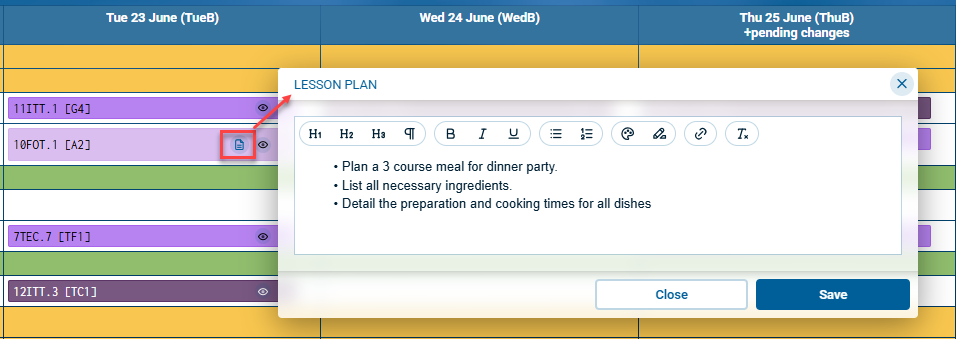
Lesson plans can be accessed by cover teachers by clicking on the lesson plan icon on their timetable. The lesson plan can be edited by the cover teacher to leave comments about the lesson, which the absent teacher can review.