
Assigning Covers
Assigning covers manually
To assign a covering teacher or a new room manually, select the required class. This will display the teacher or room picker from which an appropriate teacher or room can be selected. A search bar is available on both pickers to help locate the required teacher or room. To see more of the available options on the Choose Cover modal, select the 'Compact' view.
To clear a teacher or room from a class, select the class and then select ‘Clear’.

Selecting a replacement teacher
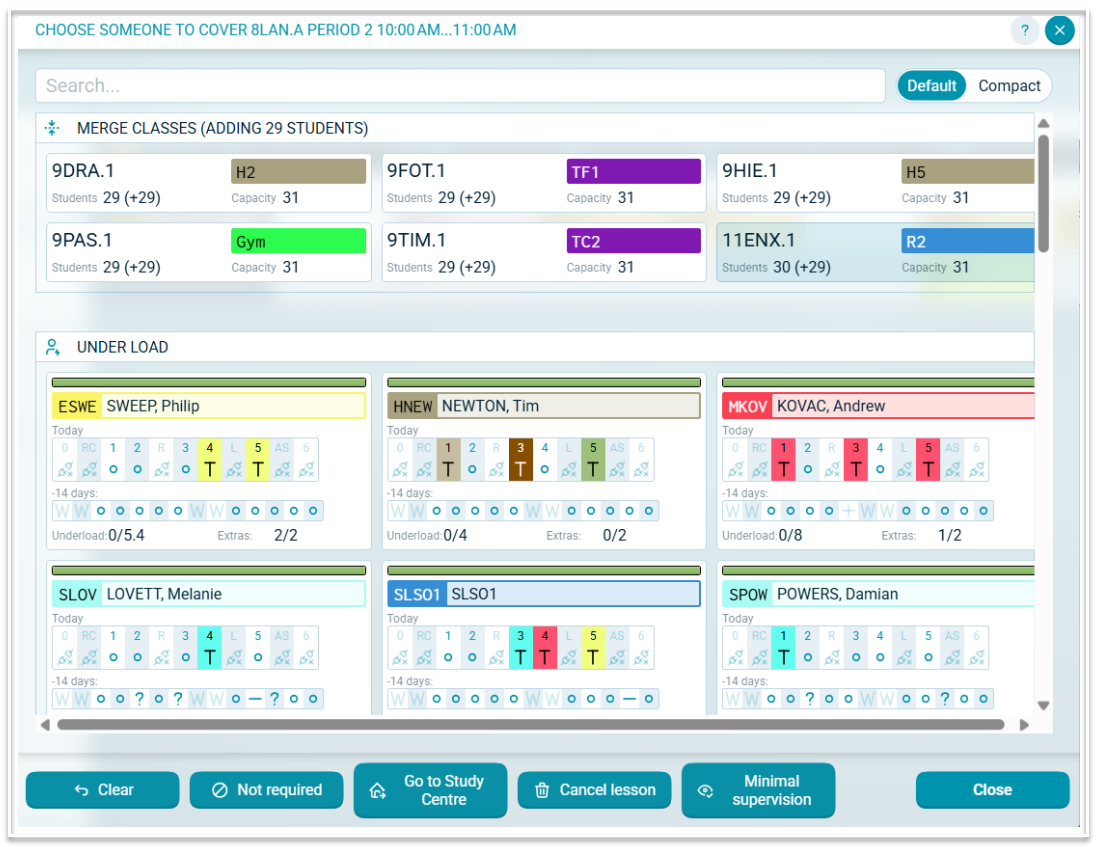
When assigning a replacement teacher, the teacher picker divides teachers into one of the following categories:
- In lieu (the teacher has had at least one class cancelled that day)
- Underload (the teacher has not been assigned a full load in the timetable and has one or more underload covers available)
- Qualified (the teacher is in the teacher set for that subject)
- Available (the teacher is available and has not reached their quota of extras)
- Available but no budget (the teacher is available but has reached their quota of extras)
- Unavailable (the teacher is not available)
- Casuals here today (those who have been assigned a cover for the selected day)
- Casuals (those who have not yet been assigned a cover for the selected day.
Each teacher will have the following information displayed on their card:
- Code and Name
- Their timetable for the selected day
- The workload for the previous 14 days
- The number of underloads used out of the total available
- The number of extras used out of the total available.
Here is an example of the teacher picker in default mode displaying merge options, teachers who have an underload cover available for the selected lesson and other cover options (see below for an explanation of these).
Selecting an unavailable teacher to cover a class
Occasionally a teacher who is teaching in the selected period is required to cover another class in that period. For example, they may need to teach an important concept to a senior class whose regular teacher is absent.
When an unavailable teacher is selected to cover a class, the original class of that teacher will be added to the Covers table so that a replacement teacher can be assigned.
Selecting a casual teacher to cover a class.
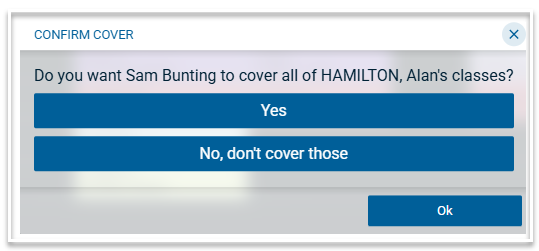
When a casual teacher is selected to cover an absent teacher’s class, the following modal will be displayed. Select Yes to have the casual teacher assigned to all of the absent teacher’s uncovered classes.
Additional Options
In some circumstances, you may not want to assign a cover teacher. There are additional options you can use in this case.

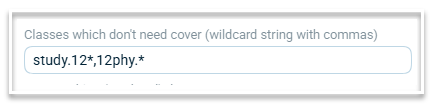
- Not required: Use this if a class does not require a covering teacher. Note that you can configure classes that never require cover in Setup > Settings. Entering classes as a wildcard string, as shown below, will automatically flag those classes with 'Not required' when their usual teacher is absent.
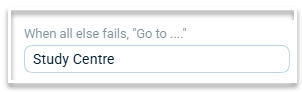
- Go to Library: This is a label that can be used to direct a class to the Library. The word 'Library' is configurable in Setup > Settings where you can rename it to something that suits your school, as shown here:
- Cancel lesson: This option cancels the class. It is a more efficient method than having to create a cancellation event.
- Minimal Supervision: Use this option with caution, as any teacher can be assigned, including absent teachers and teachers on events. Use cases for assigning 'Minimal supervision' include using a teacher in an adjacent room to keep an eye on the class, and assigning a teacher who is on an event but is available to take their own class.
Selecting a new room
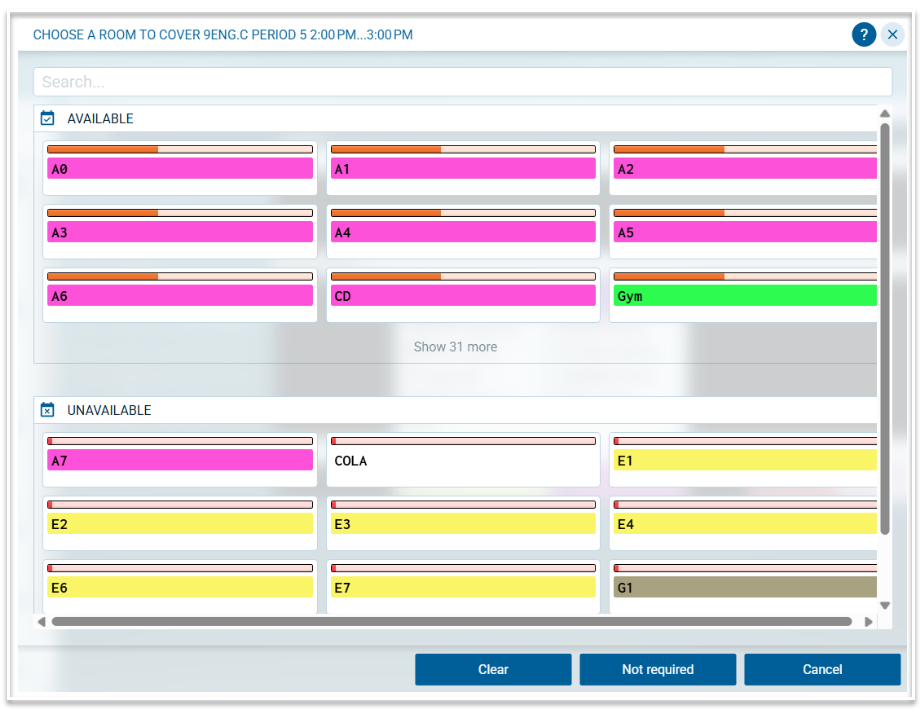
- When a class requires a room swap, select the class from the Covers table to open the room picker. Each room will be displayed in the colour of the faculty to which it belongs.
- The room picker displays rooms in two sections: Available or Unavailable.
- Select the required replacement room. Use the search bar to find rooms that may not displayed or select the option to Show 'x' more to display the remaining rooms.
- If an unavailable room is selected, the class that is scheduled in that room will be added to the Covers table to be re-roomed.
- If a replacement room is not required, select 'Not required'.
Buddy Covers
This cover type is enabled via Settings, where the global number of Buddy extras per teacher is specified. When Buddy extras are enabled, there will be an additional optional column in the Teacher table where the maximum number of Buddy extras can be edited per teacher. Buddy extras only apply to covers for Excursion and Incursion events and only to teachers who do not have an in lieu or underload budget available. When a teacher reaches their maximum number of Buddy extras per accounting period, any further Excursion or Incursion event covers will be assigned as extras when there is no in lieu or underload budget available. Buddy extras will appear on the Daily Summary in the Covers table, when the accounting column is enabled and will also be shown on the Covers report,
Using Auto-cover
The auto-cover feature will automatically assign replacement teachers and rooms to all uncovered classes. Class that have already been assigned a cover will not be changed. The algorithm that assigns the covers uses the weights in Settings to determine the most appropriate replacements.
Publishing Covers
When all covers have been completed and you wish the changes to be made visible to staff, select the ‘Publish changes’ button which will display the following dialog. Note that when there are unpublished covers, the Publish Covers button will be red.
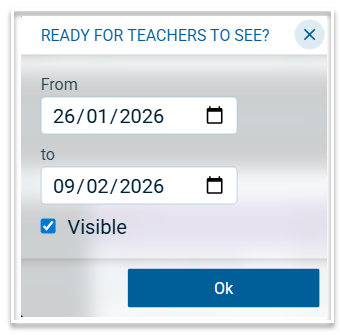
Note that publishing will also push the daily changes to your admin system, provided the integration has been set up.