
Integration with TASS
Setting up TASS to sync with Atlantis
Step 1:
You need to setup the cycle structure (days per cycle, periods per day) and bell times in both TASS and Atlantis, because there is no function to publish this from Atlantis.
Go to TASS.web Student Admin > Timetable > Setup Information > Timetable Setup on the 'Timetable' tab.
Enter / Check Timetable Parameters.
Step 2:
Go to TASS.web Student Admin > Timetable > Setup Information > Timetable Setup on the 'Timetable Definitions' tab.
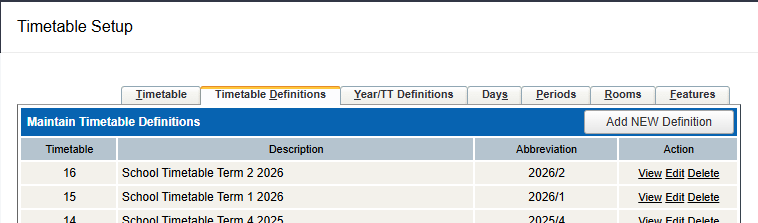
Add a Timetable Definition for each timetable period ('Rotation' in Atlantis).
The 'Clash Flag' may need to be 'Yes' if using Atlantis 's Duty Roster and Staff Meetings features, depending on how these have been set up in Atlantis, or if you want to allow any teacher or room clashes in Atlantis to be imported as they are. If set to 'No', TASS will import one instance of the clashing information, but not the other/s to avoid having room or teacher clashes.
Step 3:
Go to TASS.web Student Admin > Timetable > Setup Information > Timetable Setup on the 'Year/TT Definitions' tab.
Map each Year Group to the appropriate Timetable Definition.
Step 4:
You'll need to ensure that you have Subject Class Translations set up in TASS that match the codes coming from Atlantis.
https://tasshub.kb.tassweb.com.au/documentation/tt-define-subject-class-translations
Step 5:
Configure a “No teacher” teacher record to be associated with lessons that have no teacher. Likewise a “No room” room record. If you don’t already have suitable records then we can recommend a teacher code of “NOT” (No Teacher) and a room code of “NOR”.
TASS encourages every lesson to have both a teacher and a room, for both cyclical and date-based timetables. However, the reality is that this is not always achieved. For example, Yr12 students might go to the library for a study period; TAFE students might go to TAFE for an afternoon; Teachers might have a staff meeting over video link. TASS rejects any LISS lesson which lacks a teacher or room and may even reject the entire “upload timetable” call. To avoid a situation where important information is left off student and teacher timetables, we have these NOT and NOR records.
Initial setup in Atlantis
Step 1: Setting up the credentials
- Go to “File > Integrations”
- Look for the box for creating a new integration
- Select “TASS” from the dropdown
- Press [Create]
- TASS staff will give you credentials to enter (or you can probably re-use the credentials from your previous timetabling product). The URL will be something like: https://tass.hogwarts.nsw.edu.au/tassweb/api/liss/index.cfm .
- Test that the credentials work by pressing [Test]
Step 2: Matching Atlantis Campuses to TASS ‘Timetable Numbers’
In Atlantis, “campus” is synonymous with “period grid” and this corresponds to the TASS concept of “Timetable definition”. TASS requires that we match them up.
- Go to “DataEntry > Setup > Campuses
- Press [Optional columns] and turn on “Export id”.
- Some schools will only have a single campus called “main”. Either way, against each campus, enter an integer. To know what number you should put, go to TASS and go to “Student Admin > Timetable > Setup Information > Timetable Definitions”.
Step 3: Configure the NOT and NOR records
Step 4 of “Initial Setup in TASS” talks about creating a “No teacher” and “No room” record. You must tell Atlantis what codes you have configured in TASS in the “File > Integrations” dialog:
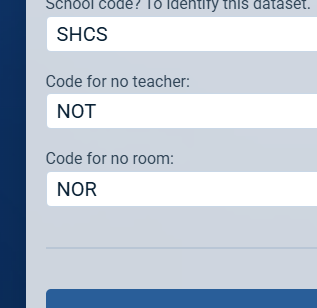
Step 4 (optional): Migrating data from TASS into Atlantis
If you’re new to Atlantis then your Atlantis liaison will be telling you how to set up data. Some data can be imported from TASS e.g. the list of teachers and students. In the same dialog as steps 5 & 6, there’s a [Sync now] button. Press it.
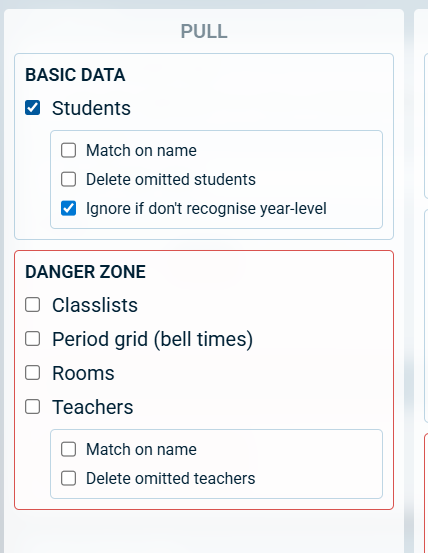
You can “pull” i.e. request to immediately receive all the data as listed above.
Publishing the timetable at the start of the year
Step 1: Setting up the Calendar in Atlantis
TASS requires that we send StartDate/EndDate values for each class. The Atlantis Timetable product is entirely ignorant of dates, so instead we need the Atlantis Covers product to manage class start/end dates. (If you are not licensed for Cover then speak to us for a workaround).
Go to the Covers product, and “Setup > Calendar”. There are 2 things you want to achieve here: (1) each teaching date should be mapped to a cycle-day, and (2) we need to set up rotation start dates. Hit F1 for instructions on how to do this.
Step 2: First publish
The other side of the “Sync now” dialog is:
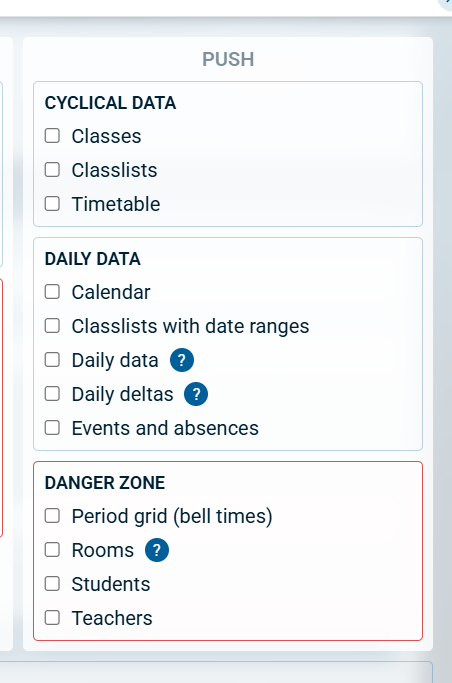
When you’re ready to publish your timetable, you’ll typically do:
- Push Classes
- Push Classlists
- Push Timetable
Ongoing use
You can re-do the “Push classes”, “Push classlists” and “Push timetable” calls as often as you like, i.e. as often as the information changes.
Internal consistency between Atlantis Timetable and Atlantis Covers
The Covers product is dependent on the Timetable product for data. The Covers product gets data about the cyclical timetable from the “official Timetable version” i.e. the one whose name equals the academic year e.g. “2027” for a Southern Hemisphere school (or “2027-28” if you’re a northern hemisphere school).
The covers product will be kept up to date with changes to the timetable product automatically at regular intervals. In cases where an immediate update is required in Covers, go to File > More and select 'Pull data from timetable'.
Talking to TASS
There is a menu item “File > Integrations” in both the Timetable product and the Covers product. They both go to the same screen and work identically.
On a regular ongoing basis, you will usually want to:
- Pull students to get new enrolments/disenrolments
- Push the Timetable any time the cyclical timetable has changed
- Push classlists with date ranges
- Push daily data
There is another way to trigger the publishing of daily covers/daily variations to TASS. In the toolbar of the main screen of Covers is a button called [Publish changes]:
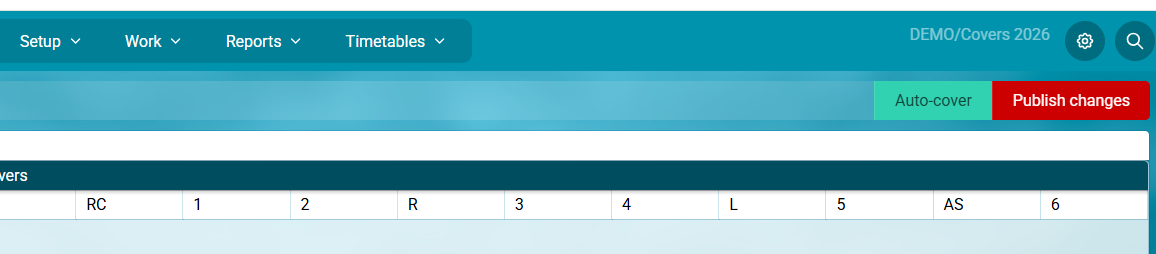
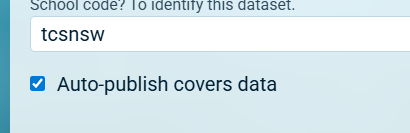
This will be coloured red if there are any pending changes. Pressing this button will do at least 1 thing: make your work visible to teachers in Atlantis timetables – because if there are covers changes which are not published then these are hidden from teachers in Atlantis until this button is pressed. The second thing it might do is publish the changes to TASS. It will do this second thing if the following checkbox is ticked in the “File > Integrations” dialog:
Troubleshooting
Problem: TASS is not displaying the data it ought to
Solution:
Step 1: Have you published to TASS? For clarity, do this from the “File > Integrations” [Sync Now] dialog.
Step 2: This step is optional. If you want to be your own detective and look at exactly what Atlantis is sending TASS, then go to the above dialog and find the button “Peruse logs” at the bottom (you might need to scroll down to see this):
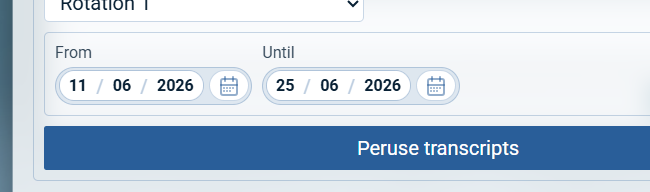
Press it to see a list of recent calls. A text file will then go to your downloads folder which you can examine.
Step 3: Notify the Atlantis team by email. We log all transcript files in the background. But we need you to give us a single example of a student not on the correct lesson or a teacher not on the correct lesson. We need to know (a) the date, (b) the period, (c) the class code, (d) the student or teacher code, and (e) what you expect to see in TASS.
Problem: The LISS call responds with an error: “Internal server error”
Solution:
Ideally a more informative error message would be sent, however often the actionable information that the technical people on the Atlantis side or TASS side need is available via the “Exception log” feature in TASS.
Problem: When you try to publish a (cyclical) timetable, you get an Atlantis error “TASS requires you to ….”
Solution:
TASS requires you to have a teacher id and a room id against each and every lesson. Since Atlantis knows that a publish job will be aborted if there’s even a single blank teacher/room, it performs the checks before even attempting to send the info to TASS.
For e.g. assemblies, you can create a teacher-record called “NOT” meaning “NO Teacher”.
For e.g. Distance Ed lessons, you can create a room record called “NOR” meaning “NO Room”. (Note – the act of creating a teacher record is more complex than creating a room record).
If you get warning about a class which is marked as “join to …”, i.e. a composite class using the same teacher and/or room as another class, and that other class has a teacher/room, then this warning is a false positive however you still need to fix it, which you do by visiting the Mosaic screen just once.
Problem: TASS says “Teacher ID does not exist or is not a current employee (DEA)"
Solution:
You need each teacher record in Atlantis to have an export id aka “external id” which matches TASS. These can be non-numeric if your TASS teacher id’s are non-numeric. To set these up:
- Go to “DataEntry > Teachers”
- Go to [Optional columns] and turn on “external id”
- Do data-entry of the numeric id’s there.
These must match TASS’s “Employee code” (not Teacher code).
Alternatively, to import the teacher id’s using “manual-assisted automatic matching”:
- File > Integrations
- [Sync now]
- In “Pull / Danger zone”, tick the “Teachers” checkbox and “Match on name”.
- Follow the instructions to get each Atlantis teacher record matched with a TASS teacher record.
Problem: TASS says “class code does not exist for this date and period."
Solution: This indicates that the TASS cyclical timetable is out-of-sync with the Atlantis cyclical timetable, (or, less commonly, the TASS date-to-cycleday mapping is out-of-sync with the Atlantis date-to-cycleday mapping).
So another call to “Push timetable” will probably fix the error.
For the less common case, check that TASS has the same cycle-day mapping as Atlantis.
Problem: A student leaves a class, but this removal is not reflected in TASS
Solution: The way TASS processes the “Push classlists” call is determined by the import options selected in TASS.
Manual import has more options:
https://tasshub.kb.tassweb.com.au/documentation/tt-import-student-subject-data
LISS integration has the same initial 3 options:
https://tasshub.kb.tassweb.com.au/documentation/liss-integration-api
If your setting is 'Overwrite', it won't remove subjects, only add or update classes.