
Learning Support
The Learning Support Feature
The Learning Support feature involves having dedicated learning support officers, flagging students as having support funding, and assigning support officers to lessons via drag and drop once the timetable has been constructed.
Setting up Learning Support
- Learning support officers, often referred to as SLSOs are typically teachers aides. They should be entered in Data entry > Teachers and placed in a dedicated Support faculty. Currently Atlantis will treat any faculty with the name "SLSO" or "Support" or "Learning_Support" as a Support faculty. Any teacher in this faculty is considered an SLSO.
- There is a new optional column in Students > Student Data called 'Has support funding'. Enter Y in this column to indicate that a student is funded.
- The assignment of SLSOs is typically done after the timetable is completed and in no way constrains the construction of the timetable. There is no need to create a parallel set of class objects to represent support teachers.
Creating the Support Roster
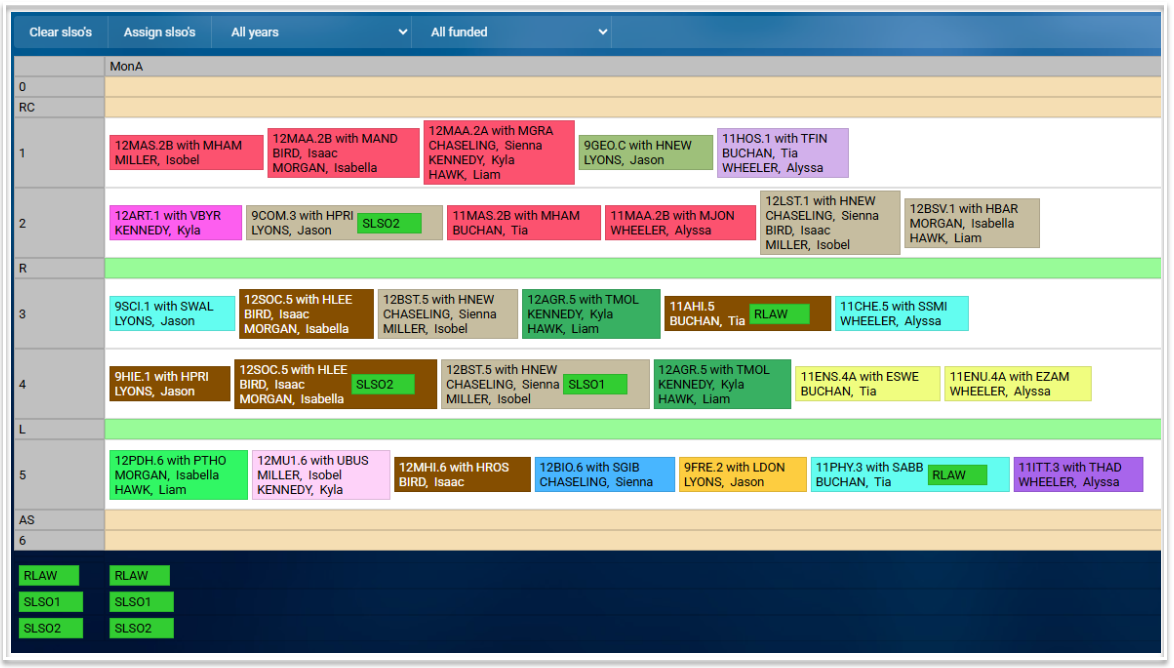
- To complete the Learning Support timetable, go to Construction > Rosters > Learning Support. Here you will see a timetable displaying classes that contain students with funding. There are two filters, one for year levels and one for individual students. You can select 'All years' and 'All funded' students to see the complete support timetable. Below the timetable will be a set of codes representing SLSOs. The following image shows the Monday A timetable for all years and all funded students, with some SLSOs allocated.
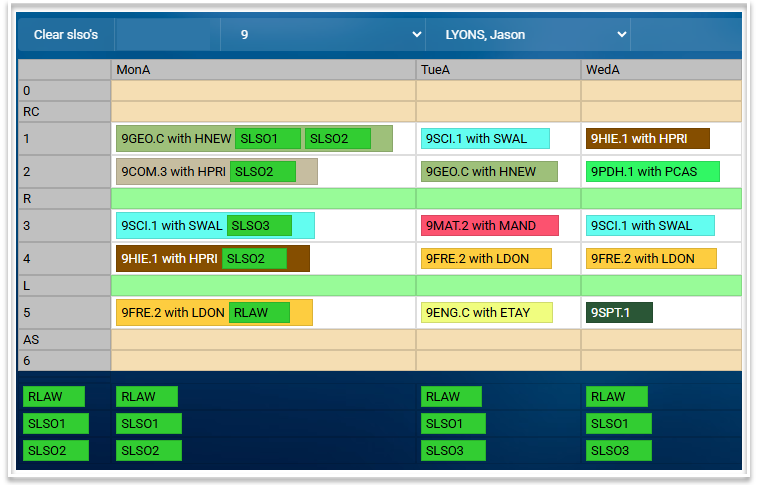
- Select the required year level and funded student to complete the roster for that student. Each cyclical lesson can be assigned one or more SLSOs. To assign an SLSO to a lesson, drag their code onto the required lesson. To remove all allocations, select Clear slsos.
Export
The Learning Support roster can be exported to Excel using the 'Export' button.
Timetables
On timetables, the SLSO names will not appear anywhere except (a) on teacher timetables and (b) on student timetables if the student has funding. An SLSO will see all their lessons on their own timetable. Other teachers will also see who's helping them when they look up their timetables.
Report
There is a report: "Timetables > Reports > Students and SLSOs". This report will list each instance in the cyclical timetable that a student-with-funding is on a lesson with an SLSO. When there are multiple SLSOs on the one lesson, they will be displayed together e.g. JONES, Mabel + SMITH, Larry.
Important Note
This is the first iteration of the Learning Support roster and it is still a work in progress. We are planning further development to improve the functionality and would love your feedback on this feature.