Setting up the Covers module
Calendar Setup
To use the Atlantis Covers module, the calendar for the academic year needs to be set up. When the Calendar has not been set up, you will see a message similar to the following when you open Covers.
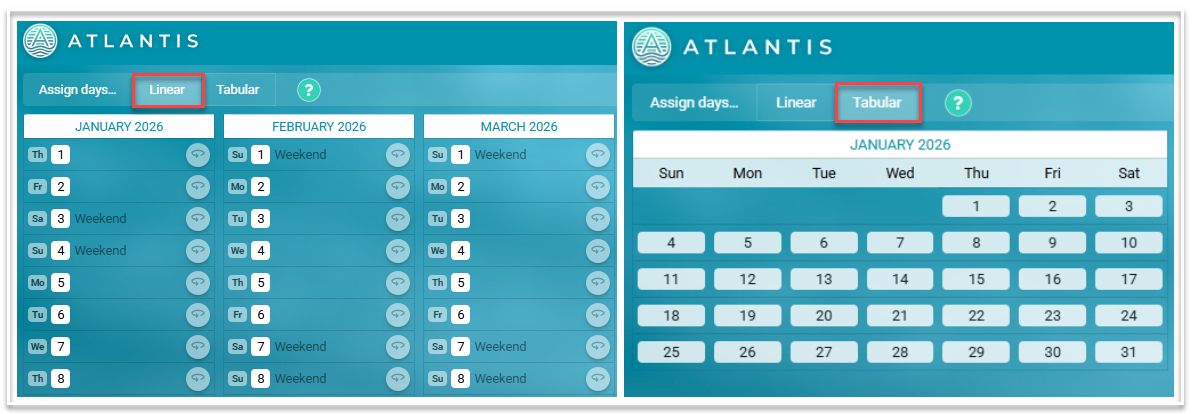
Go to Setup > Calendar. There are two views available; linear and tabular. We recommend using the linear view to add your school days, holidays and rotation start days. Use the ‘?’ symbol to view a video of a quick demonstration of setting up the calendar before you start.

Assigning days
To assign teaching days or holidays or to clear existing days, select ‘Assign Days’ which will display the following:
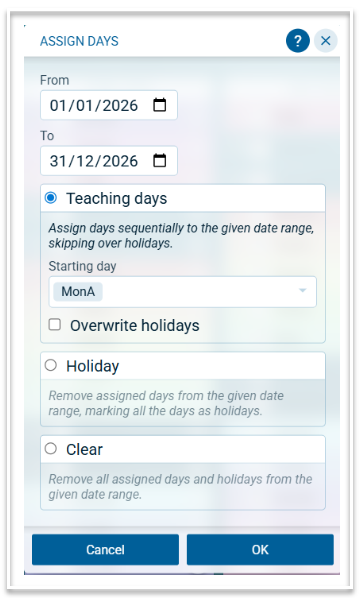
Note that only a single date range can be added.
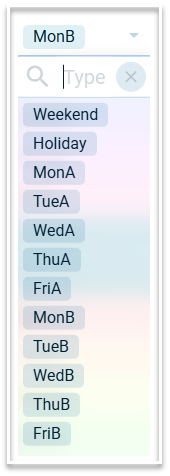
Select the required date range and then select either Teaching days or Holiday. If adding Teaching days, ensure the correct cyclical day (e.g. MonA) is selected for the first day of the date range. Click OK to apply those days to the Calendar. Repeat for the remaining days where required.
To change an individual day, click on that day and select the required option from the displayed list.
Setting rotation start dates
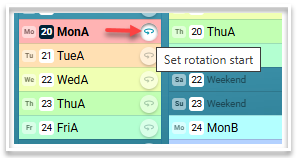
If your timetable includes rotations, add the start of a new rotation by selecting the rotation symbol on the day the new rotation starts. Note that you do not need to select the start of the first rotation as this is automatically applied to the calendar. The start date of new rotations will be displayed in bold.
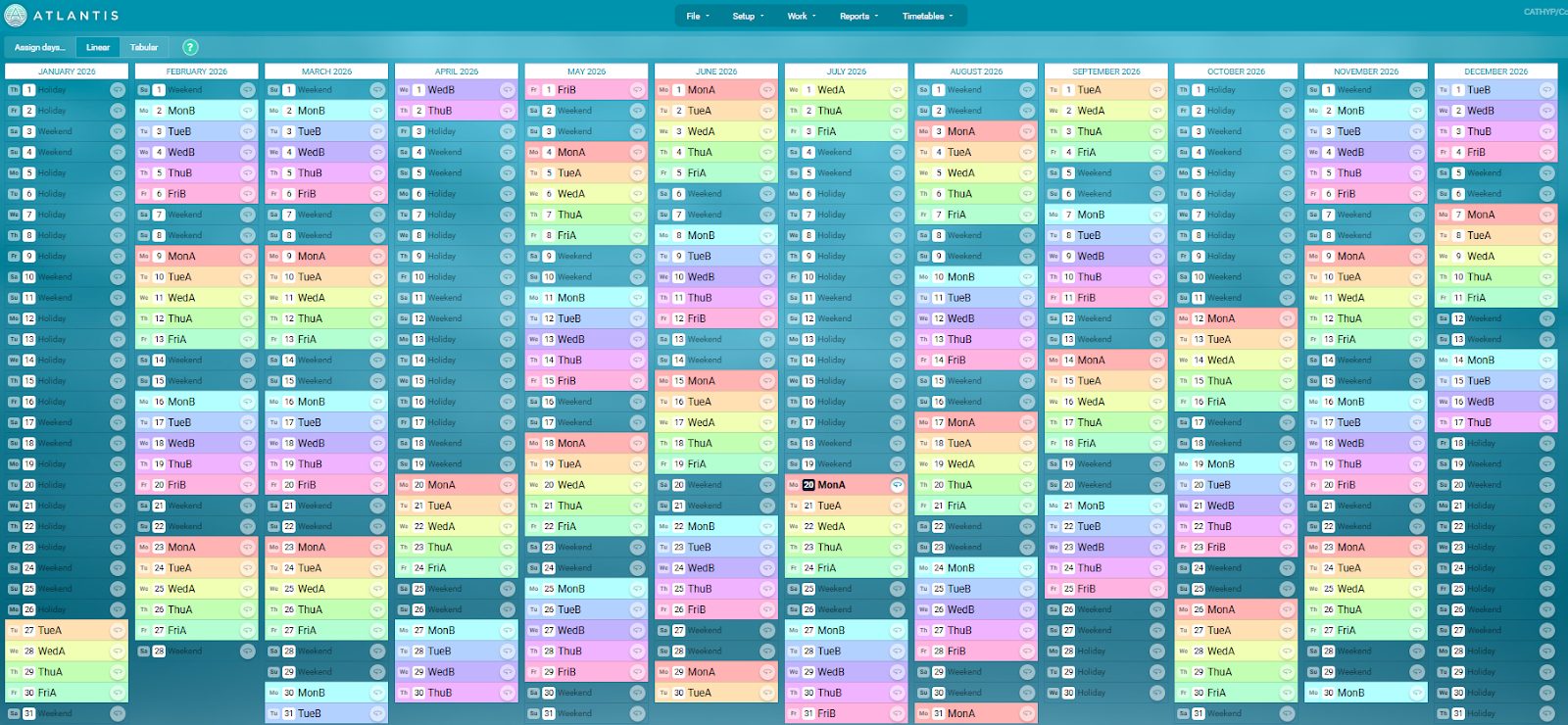
The populated calendar will look like this.
Pull data from timetable (optional)
The Covers app displays information from the official timetable file. The process of sending data from the official timetable file to Covers is automatic and does not require a push or a pull by the timetabler or the Daily organiser. However, if a change made in the timetable is required immediately and the Daily Organisers cannot wait for the automatic sync (which occurs every 5-10 minutes), an optional pull from timetable can be performed. To perform an optional pull from the timetable, go to File > More > Pull data from timetable (optional).
Settings
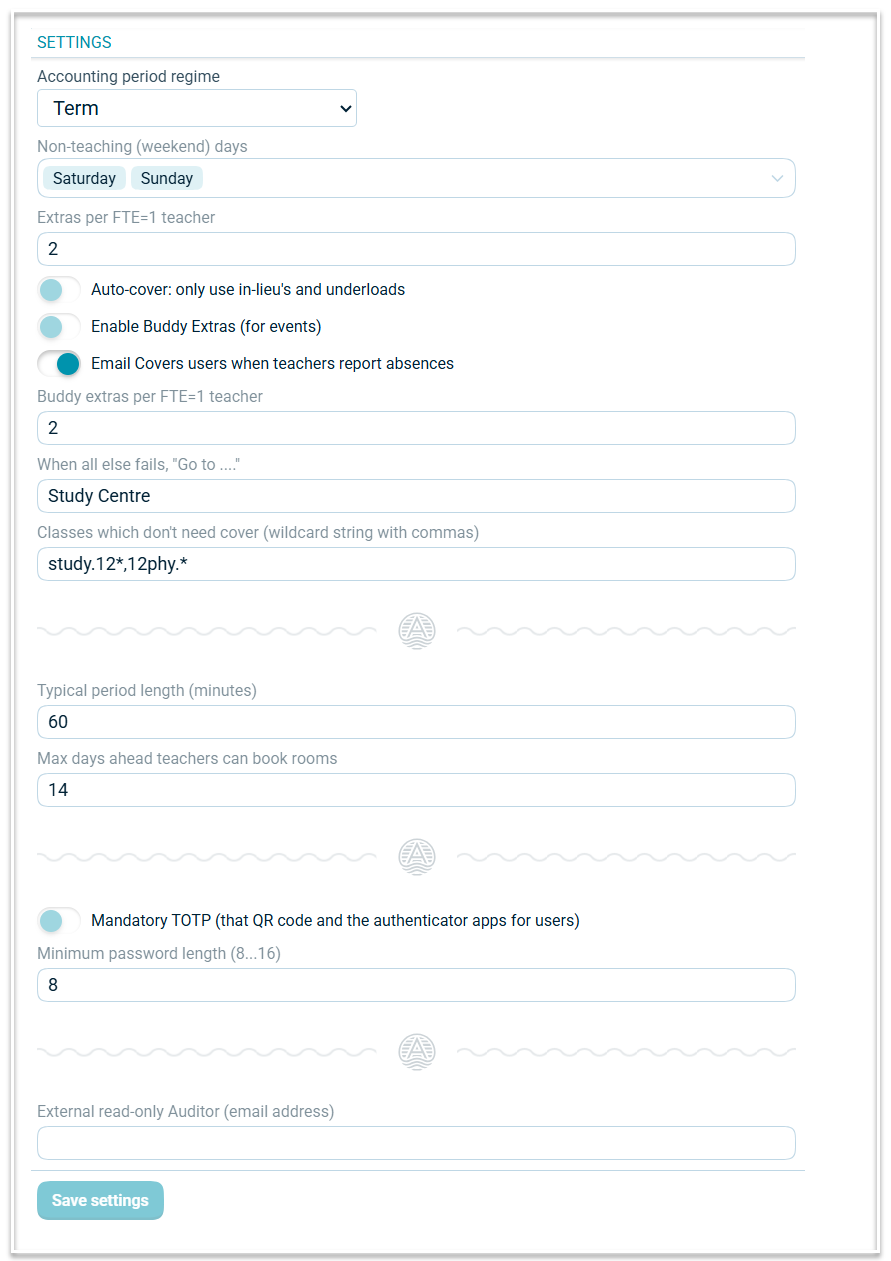
Go to Setup > Settings. This will display the Settings and the Algorithm weights.
Here are the Settings options:
Accounting period
Select the required accounting period for which you want extras to be counted. The options are Cycle, Term, Semester or Whole year. For example, selecting Cycle will mean that the extras assigned to staff will reset at the beginning of each cycle.
Note that an ‘In lieu’ will only apply to the day when a class is cancelled and ‘Underloads’ automatically reset at the beginning of the cycle, regardless of which option is selected for the Accounting period.
Non-teaching (weekend) days
These will be populated automatically.
Extras per FTE
This is a global setting that will apply to all teaching staff. This value indicates how many extras a teacher can be assigned per accounting period. This value will be applied unless a different value is assigned to a teacher in Setup > Teachers > Max Extras
Auto-Cover: only use in lieus and underloads
Select this option if you do not want to assign extras via auto-cover
Enable Buddy Extras (for events)
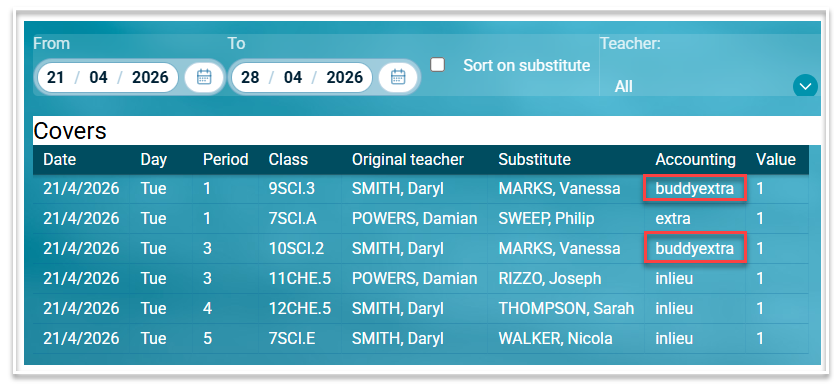
A Buddy extra is a special cover type that is used to cover teachers who are on excursions. The usual number of Buddy extras a teacher can be assigned per accounting period should be entered in the the 'Buddy extras per FTE=1 teacher ' field. When Buddy extras are enabled, there will be an additional optional column in the Teacher table where the maximum number of Buddy extras can be edited per teacher. Buddy extras only apply to covers for Excursion events and only to teachers who do not have an in lieu or underload budget available. When a teacher reaches their maximum number of Buddy extras per accounting period, any further Excursion event covers will be assigned as extras when there is no in lieu or underload budget available. Buddy extras will appear on the Daily Summary in the Covers table, when the accounting column is enabled and will also be shown on the Covers over a date range report,
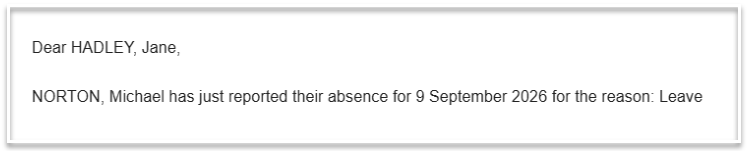
Email Covers users when teachers report absences
When this option is enabled, an email will be sent to all users who have the Covers role when a teacher self-reports an absence.
When all else fails, 'Go to....'
'Library' on the 'Go to Library' option is the default on the Choose Cover modal. Use this setting to change the word 'Library' to match your school's terminology.
Classes which don't need cover
Classes entered here will be assigned the 'Not required' option automatically when the class teacher is absent. Enter classes as a wildcard string separated by commas.
Typical period length (minutes)
The typical length of a teaching period should be entered here. This will be used to calculate the credit for teachers assigned to exam or supervision events.
Max days ahead that teachers can book rooms
To limit how far ahead rooms can be booked, enter the maximum number of days into the future that room bookings can be made.
Important: Remember to select ‘Save Settings’ when you make any changes.
Algorithm Weights
These weights determine the suitability of people to cover classes. It is used when both manually assigning covers and when using auto-cover. The defaults generally work well, but you can adjust them to suit your requirements.
Important: Remember to select ‘Save Weights’ when you make any changes.
Adding Casual teachers and Admin staff
When data is pulled from the timetable, all staff who are in the timetable file will be automatically added to the Teachers table in Covers. To add casual teachers and any admin staff who are not in the timetable file but need to be available in Covers, go to Setup > Teachers.
Casual teachers
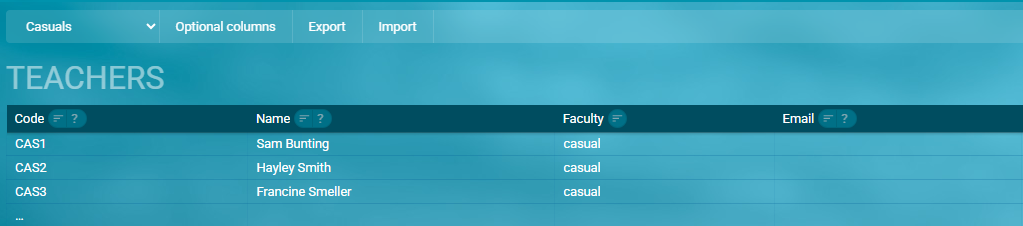
To add a casual teacher, filter the table to the Casuals faculty, go to the last row in the table and add their code, name and email address. If the email column is not displayed, it can be enabled via ‘Optional columns’. To remove a casual teacher, delete their code
Admin staff
To add an admin staff member, filter the table to the Admins faculty, go to the last row in the table and add their code, name and email address. To remove an admin staff member, delete their code.
As the Admins faculty is Covers specific, it is recommended that no faculty in the Timetable module is called Admin or Admins.
Can take Covers?
The default for this column is blank, which means Yes. When a staff member is not to take any covers, including in lieus, underloads or extras, putting 'N' in this column will remove them from the list of teachers when covering classes.
Note that any staff member from a faculty flagged as Non-teaching in the Timetable module, will also be excluded from the list of teachers when covering classes.
When a faculty contains staff members, some of whom can take covers, and others who are not to take covers, that faculty should not be flagged as non-teaching and instead, the members of that faculty who are not to take covers should have 'N' entered in the 'Can take covers' field in the Teachers table.
Part-time casuals
For teachers who are part-time and who are available to do casual work, put Y in the PTCasual column. If this column is not displayed, it can be enabled via ‘Optional columns’.
This will move those teachers to the casual list on days where they are not working as a permanent teacher.
Absence Reasons
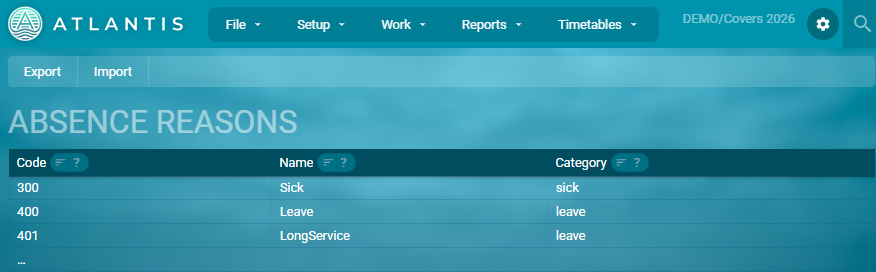
Go to Setup > Absence reasons to enter the reasons why teachers may be absent. Enter the code, name and category for each reason. These will then appear in the list to select when a teacher absence is added.