Teacher Data
The Teachers Table
The Teachers table, under the Data entry menu, is where all teacher related data is entered. Information regarding each of the columns is displayed when the '?' in the column header is selected. Additionally, information regarding the whole screen is displayed using the F1 key on your keyboard.
- The table can be sorted by any column and the column widths can be adjusted.
- To enter a new teacher, select the required faculty and add the required information in the last row of the table.
- To delete a teacher, delete their code from the first column.
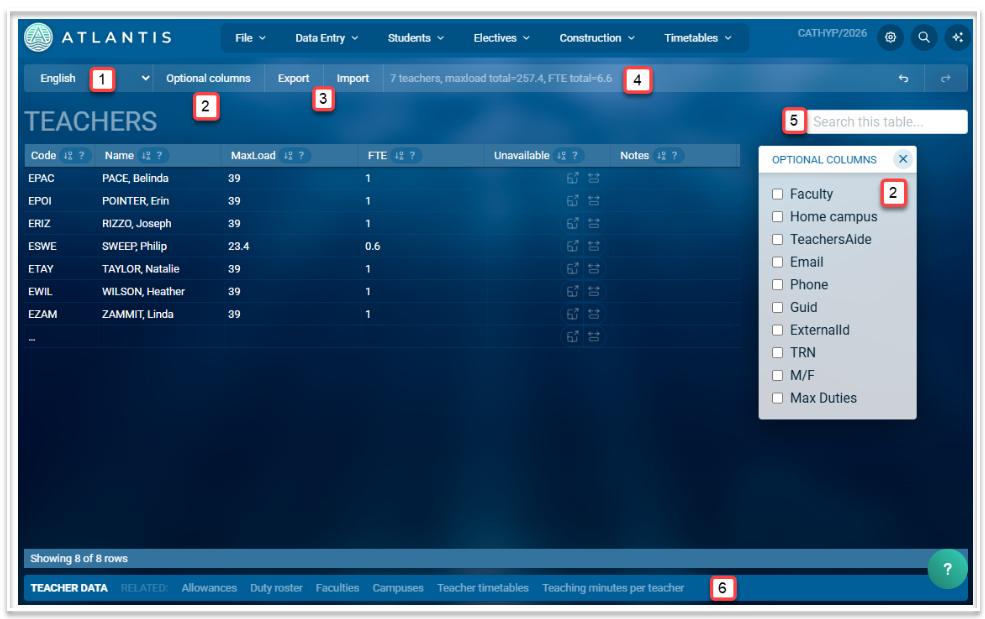
- The faculty drop down contains all the faculties that have been added to the Faculties table. You can select a single faculty or 'All faculties'. When filtered to a faculty, any teachers added to the table will automatically be added to the selected faculty. When filtered to All faculties, any teachers added to the table will be placed in the 'NoFaculty' faculty unless the optional 'Faculty' column has been enabled and a faculty in that column is selected.
- Optional columns, as shown above, can be enabled if required.
- Data can be exported as a .csv file or imported from a .csv or .xlsx file. To import data, select the 'Import' button then drag the file onto the screen, matching column headers where necessary. Use one of the import options (Update, All new entries or Merge with existing data) to complete the import.
- Information regarding the number of teachers, total maximum load and total FTE is displayed for each faculty, or for the whole school when 'All faculties' is selected.
- The search bar can be used to search for any data in the displayed table
- Related screens can be accessed by selecting a link in the footer
Teacher Unavailability
The Unavailable column in the table is where a teacher's unavailability is recorded. This can be done in two ways:
- Hardcoding the exact days and periods a teacher is not available for lessons. The syntax for this is detailed in the F1 help.
- Using the Flexwork option to indicate the possible days a teacher will not be available. The algorithm in the Mosaic will determine the best possible days off for that teacher when the timetable is constructed.
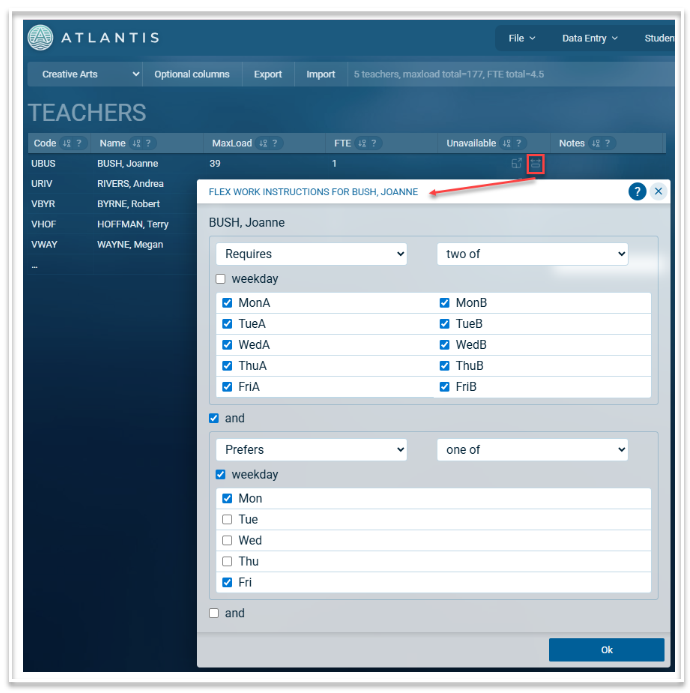
In the example below, the teacher has an FTE of 0.8 and requires two days off per fortnight. She would prefer to have Mondays or Fridays off.